
By Leo Antony Raj, Senior Trainer, Systech Group 20+ years in networking and cybersecurity · Updated October 2026.
7 Min read
In short
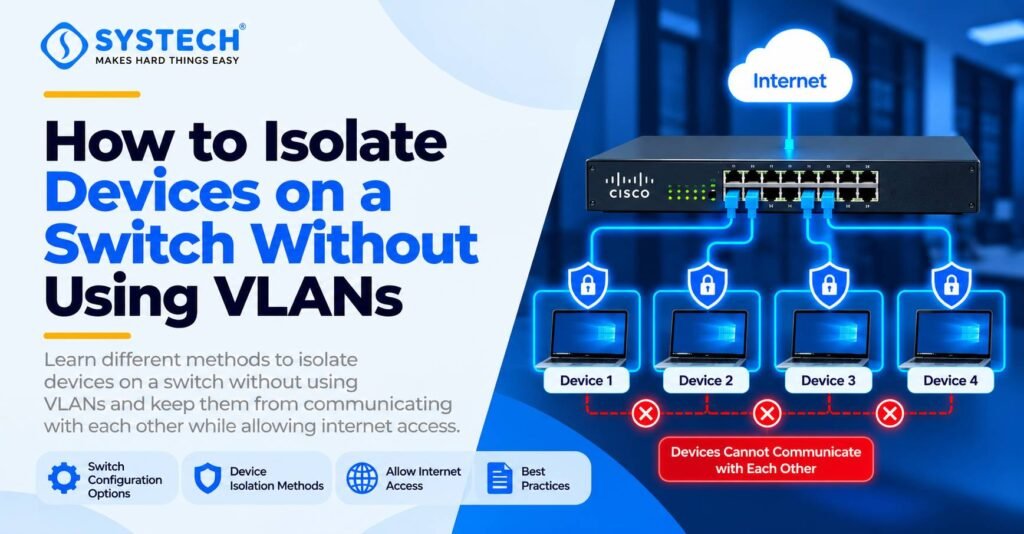
Imagine an office where five computers are connected to the same network switch. Every computer needs internet access, but employees must not be able to communicate directly with other computers on the network. You cannot create VLANs, and there is no separate router available for managing communication between the systems.
Table of Contents
How can you solve this problem?
The recommended solution is port isolation, if the switch supports it. On compatible Cisco switches, a similar feature is called protected ports. These features block Layer 2 traffic between selected switch ports while allowing traffic between those ports and an unprotected uplink. Cisco documents this behaviour for protected ports, while other vendors provide port isolation without requiring VLANs.
This is a useful topic for learners studying switching, network security and the practical concepts covered in the CCNA Course in Chennai.
In this guide, you will learn how port isolation works, how to configure it on a compatible switch, how to verify the result and which limitations you must understand before using it in a real network.
What is the actual network problem?
Consider a small office network with the following devices:
- One internet modem or gateway.
- One managed network switch.
- Three computers connected to the switch.
- No VLANs configured.
- No permission to create VLANs.
- A requirement to keep every computer connected to the internet while preventing communication between the computers.
Normally, devices connected to the same Layer 2 network can exchange local traffic through the switch. For example, Computer A may attempt to communicate with Computer B using its IP address.
If all computer ports operate normally, the switch can forward that traffic between them.
The objective is to stop this direct communication without disconnecting the computers from the internet.
What should the network administrator do?
Configure port isolation or protected ports on the computer-facing switch ports, and leave the internet-facing uplink outside that isolation group. This helps prevent direct communication between connected computers while allowing them to access the internet.
The exact feature name and configuration method depend on the switch manufacturer and model. For practical networking skills, explore the CCNA Course in Tambaram at Systech Group to learn about network switching, connectivity, and device security.
How does port isolation work?
Port isolation is a switch feature that controls which switch ports can exchange traffic at Layer 2.
When computer-facing ports are isolated from one another, the switch prevents those ports from forwarding traffic directly between each other. They can still communicate with permitted ports outside the isolation group, such as the uplink to the internet gateway. The exact forwarding rules depend on the vendor’s implementation.
Example network topology
Internet
Modem / Internet Gateway
Provides internet routing, if supported
Managed Network Switch
Port isolation enabled
Uplink remains outside the isolation group
PC 1
Internet allowed
Peer traffic blocked
PC 2
Internet allowed
Peer traffic blocked
PC 3
Internet allowed
Peer traffic blocked
Conceptual diagram: the switch must support isolation and be configured to allow the client ports to reach the gateway-facing uplink.
What happens after configuration?
These results assume that all computer ports are correctly isolated, the uplink is permitted by the switch’s isolation rules, and the gateway provides working internet connectivity.
Which feature should you configure without VLANs?
The best option depends on the switch model and its supported features.
Cisco’s protected-port feature blocks unicast, broadcast and multicast data traffic between protected ports, while normal forwarding remains possible between a protected port and a nonprotected port. Port security serves a different purpose and should not be treated as an equivalent isolation feature.
For this scenario, choose port isolation or Cisco protected ports. Do not choose port security alone to prevent computers from communicating with one another.
If you are studying how these controls fit into a broader network defence strategy, the Cyber Security Course in Chennai provides a relevant learning path for understanding network protection concepts.
How to configure port isolation on a managed switch
The following steps explain the general process. Menu names differ between switch manufacturers, so check the documentation for your exact model before making changes.
Step 1: Identify the switch ports
First, identify which physical port connects to each device.
For example:
Do not isolate the uplink together with the computer-facing ports unless the switch documentation explicitly describes a configuration that still allows the required uplink traffic.
Step 2: Open the switch management interface
Log in to the managed switch using its supported management method.
Look for a setting named something like:
- Port Isolation
- Isolation Group
- Isolated Ports
- Protected Port
- Port-Based Traffic Control
On some switches, the setting is available through a web interface. On others, it is configured through a command-line interface.
Step 3: Enable isolation on the computer ports
Select the ports connected to Computer 1, Computer 2 and Computer 3.
Add them to the appropriate isolation group or enable the vendor’s equivalent isolated-port setting.
Make sure the configuration prevents traffic in both directions between the computers. Some switches use forwarding lists or more flexible isolation rules, so check how the model handles bidirectional traffic.
For example, TP-Link Omada’s documentation describes port isolation as a way to prevent PCs connected to different ports from communicating without configuring VLANs.
Step 4: Keep the uplink reachable
The switch must still allow each isolated computer to communicate with the gateway-facing port.
Confirm that the isolation feature permits communication between the client ports and the uplink. On switches using a forward-port list, the permitted destinations must be configured according to the manufacturer’s instructions.
Step 5: Save the configuration
Save or apply the configuration. If the switch requires the running configuration to be saved separately to persistent storage, do that as well.
Do not assume that clicking an enable button automatically saves the settings across a restart.
Cisco switch configuration example: Protected ports
On a compatible Cisco Catalyst switch, the switchport protected command enables protected-port behaviour on an interface. Cisco’s documentation describes the command and its verification steps.
Assume the following port assignments:
- GigabitEthernet 1/0/1 – uplink to the gateway.
- GigabitEthernet 1/0/2 – Computer 1.
- GigabitEthernet 1/0/3 – Computer 2.
- GigabitEthernet 1/0/4 – Computer 3.
The example configuration is:
enable
configure terminal
interface GigabitEthernet1/0/2
switchport protected
exit
interface GigabitEthernet1/0/3
switchport protected
exit
interface GigabitEthernet1/0/4
switchport protected
exit
end
This example assumes the interfaces already have suitable Layer 2 configuration and that the switch model supports the command. It does not create VLANs or change the uplink configuration.
Verify the configuration
Use the following command for each protected interface:
show interfaces GigabitEthernet1/0/2 switchport
show interfaces GigabitEthernet1/0/3 switchport
show interfaces GigabitEthernet1/0/4 switchport
show running-config
Check the output to confirm that the intended ports have protected-port status enabled.
Important: Cisco command support and interface behaviour vary by model and software version. Check the relevant configuration guide before applying this example to production equipment.
What if the switch does not support port isolation?
Not every switch supports port isolation or protected ports. An unmanaged switch usually does not provide the controls required to isolate individual connected devices.
If the feature is missing, consider these options:
- Check whether the switch has a firmware version that supports port isolation.
- Check the vendor documentation for an equivalent feature, such as isolated ports or protected ports.
- If the current switch cannot isolate devices, request permission to use a supported managed switch or another approved network design.
Do not try to solve this problem using port security alone. Port security limits which source MAC addresses can use a port; it does not automatically block communication between otherwise permitted devices.
How to test whether device isolation works
After applying the configuration, test both the required connectivity and the restriction.
Network isolation test checklist
Use this checklist during a lab exercise or an approved network test.
Confirm each computer has a valid IP address
Check the IP address, subnet mask, default gateway and DNS settings.
Test internet access from every computer
Open a website or test a known reachable internet endpoint.
Test communication between Computer 1 and Computer 2
Attempt a permitted test such as pinging the other computer’s IP address.
Repeat the peer test for all computer pairs
Check each pair rather than testing only one direction.
Check the switch configuration
Confirm client ports are isolated and the uplink remains permitted.
0 of 5 checks completed
Reset
A failed ping does not always prove isolation is working. The destination computer might block ICMP traffic through its firewall. Use the switch configuration and other approved connectivity tests to confirm the result.
Similarly, successful internet access does not prove that all peer-to-peer communication is blocked. Both requirements must be tested separately.
Important limitations to understand
Port isolation is useful, but it does not provide every form of network security.
- Layer 2 scope: Cisco protected ports prevent direct Layer 2 data forwarding between protected ports on the same switch. The behaviour differs across vendors and platforms.
- Multiple switches: Isolation on one switch does not automatically isolate devices connected to another switch.
- Gateway routing: Traffic routed through a Layer 3 device may follow different rules. Review the gateway’s configuration if inter-device traffic can be routed.
- Internet gateway requirement: A pure modem operating in bridge mode may not provide routing, NAT or DHCP. A switch cannot replace these functions. If the modem is only a bridge and no upstream router or gateway exists, the required internet access may not work.
- Device-level communication: Other communication paths, such as Wi-Fi, a second network adapter or a separate physical connection, must be considered separately.
- Management access: Keep the switch management interface accessible only to authorised administrators.
These limitations matter when applying network isolation in offices, labs and shared environments. For learners interested in understanding how network weaknesses and access controls affect overall security, the Ethical Hacking Course in Chennai is a relevant next step.
Not sure which route fits you?
Tell us your stream and what you are hoping for, and we will tell you honestly which option suits.
Get course detailsWhy port isolation is important for network security
In shared networks, preventing direct communication between devices can reduce unwanted local traffic and limit some forms of unauthorised access.
For example, an organisation might allow multiple users to browse the internet while restricting direct communication between their computers. Port isolation can help meet this requirement when the switch and gateway are configured correctly.
However, isolation should be part of a wider security plan that may include endpoint firewalls, access controls, secure device management and monitoring.
For practical learning that combines switching concepts with wider infrastructure topics, Systech Group also offers Cyber Security and Networking training in Coimbatore.
Conclusion
If several computers must retain internet access but must not communicate directly with one another, port isolation is the recommended approach when the switch supports it. On compatible Cisco switches, protected ports provide a similar solution without requiring new VLANs.
Configure the computer-facing ports for isolation, preserve access to the gateway-facing uplink, and verify both internet connectivity and device-to-device restrictions. If the existing switch cannot support these controls, use an approved alternative rather than relying on port security alone.
For readers who want to build practical networking skills and understand how switching, connectivity and security work together, explore the CCNA Course in Chennai at Systech Group.
Frequently asked questions
How can I isolate devices on a switch without VLANs?
Use a supported port-isolation feature or, on compatible Cisco switches, configure protected ports. Keep the gateway-facing uplink outside the isolation group so that permitted internet traffic can continue.
Can devices access the internet after port isolation is enabled?
Yes, provided the switch permits communication between each isolated client port and the uplink, and the gateway provides working internet connectivity.
Is port isolation the same as port security?
No. Port isolation controls communication between switch ports. Port security controls which source MAC addresses are permitted on an interface. They solve different problems.
Does Cisco protected-port configuration require VLANs?
The protected-port feature itself can block Layer 2 traffic between protected ports without creating separate VLANs. The ports must still have suitable existing Layer 2 configuration, and support depends on the switch model.
Can two isolated computers communicate through a router?
Potentially, yes. Protected ports block direct Layer 2 forwarding between protected ports, but traffic routed through a Layer 3 device follows the routing and security rules of that device.
Can I configure port isolation on an unmanaged switch?
Usually not, because unmanaged switches generally lack configurable port-isolation controls. Check the product documentation before choosing a solution.
Will port isolation work between computers connected to different switches?
Not automatically. The feature’s scope depends on the vendor and design. Isolation configured on one switch may not extend across other switches.
How do I confirm that port isolation is working?
Verify the switch’s isolation settings, test internet access from every computer, and test permitted communication attempts between computer pairs. A failed ping alone is not sufficient proof.
Written by
Leo Antony Raj
Senior Trainer · Networking, Cyber Security and Cloud
Leo Antony Raj has over 20 years of hands-on experience in hardware, networking, server configuration, ethical hacking and cloud computing. He has trained more than 10,000 students, and he teaches networking first, because every security and cloud role is built on it.
Trichy
Systech Hardware & Networking Academy (p) Ltd
- No.129, Aruvi Block, 1st Floor, St. Paul's complex, Bharathiyar Salai, Cantonment, Trichy - 620001
- +91 75022 02555
- contact@systechgroup.in
Coimbatore
Systech Hardware & Networking Academy (p) Ltd
- No.204, Ajay building, 9th street, cross cut road, Gandhipuram, Coimbatore - 641012
- +91 75022 02555
- contact@systechgroup.in
Chennai
Systech Hardware & Networking Academy (P) Ltd
- 607/2A,Thilakavathy Complex, Mudichur Road , Krishna Nagar, West Tambaram, Chennai - 600045
- +91 75022 02555
- contact@systechgroup.in
About Systech Group
Systech Group is a practical IT and cybersecurity training institute with 23+ years of experience in career-focused technical education. It provides hands-on training in networking, ethical hacking, cloud computing, software development, and emerging technologies through real-time lab environments. With 40,000+ students trained and branches in Trichy, Coimbatore, and Chennai, Systech Group focuses on building industry-ready professionals.
Useful Links
- Privacy Policy
- Terms & Conditions
- Site Structure & Navigation
- Cancellation & Refund
- All Rights@SystechGroup 2026
Get Social With Us