Table of Contents
Introduction
A slow or unstable internet connection can be frustrating, especially when you rely on it for work, online classes, streaming, or communication. In many cases, the problem is not with your internet service provider but with the router itself. Learning how to reset the WiFi router can help fix connection issues, improve network performance, and restore internet access within minutes. Whether you are a home user or someone interested in networking, understanding the correct reset process is an essential skill. This guide explains when and why a reset is needed and how to restore your internet connection safely.
What You’ll Learn
- When a router reset is necessary
- The difference between restarting and resetting a router
- Steps to restore internet connectivity
- Essential router wifi setup practices
- Important wifi router configuration tips
- Common issues to check after a reset
Why Your Internet Connection May Stop Working
Many internet problems are linked to router settings rather than the internet service itself. Routers manage communication between your devices and the internet, and even small configuration issues can affect performance.
Some common reasons include:
- Incorrect network settings
- Outdated firmware
- Frequent power interruptions
- Too many connected devices
- Security setting conflicts
- Failed software updates
You may notice symptoms such as slow browsing speeds, devices disconnecting repeatedly, or websites taking longer than usual to load. When basic troubleshooting does not help, learning how to reset the WiFi router becomes the next logical step.
A router reset removes problematic settings and returns the device to its factory defaults, giving you a clean starting point.
How to Reset the WiFi Router Step by Step
Before resetting your router, remember that all customised settings will be erased. This means you will need to perform router wifi setup again after the reset is complete.
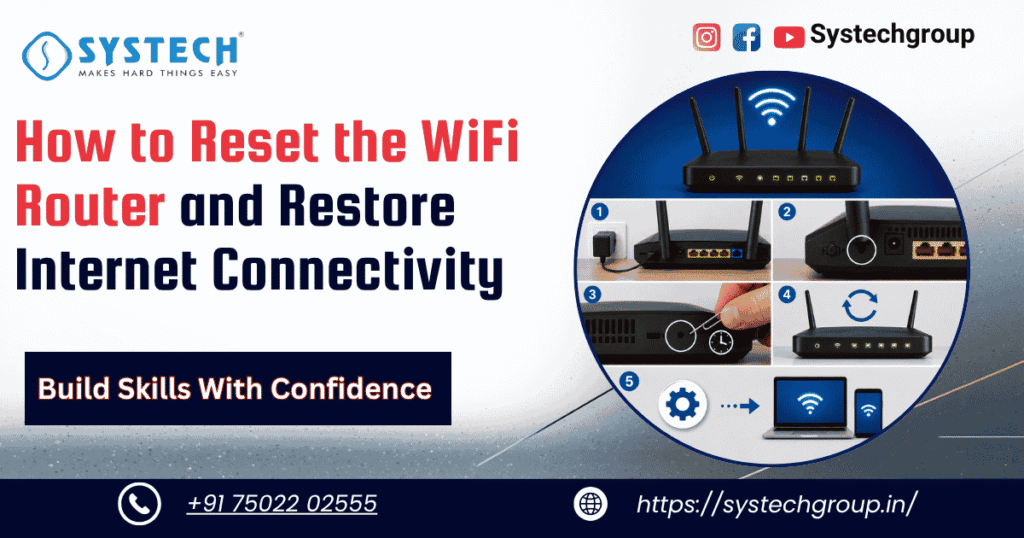
Follow these steps:
- Keep the router powered on.
- Locate the reset button on the back or bottom of the device.
- Use a paper clip or pin to press and hold the button.
- Continue holding it for 10–15 seconds.
- Wait for the router lights to blink and restart.
- Allow the router to complete the reboot process.
After a few minutes, the router will return to its factory settings. At this point, the process of how to reset the WiFi router is complete.
If the internet issue was caused by an incorrect setting or software problem, the connection may begin working normally after reconfiguration.
Router WiFi Setup After a Factory Reset
Once the router has been reset, the next step is reconnecting and configuring the network.
During router wifi setup, you should:
- Connect to the default WiFi network shown on the router label.
- Open the router’s administration page in a browser.
- Log in using the default username and password.
- Change administrator credentials immediately
- Create a new WiFi network name.
- Set a strong wireless password.
Many users skip security settings during router wifi setup, but this can leave the network vulnerable to unauthorised access. Taking a few extra minutes to secure the router helps protect personal and business data.
A proper setup also improves network reliability and makes future troubleshooting easier.
WiFi Router Configuration Best Practices
A good Wi-Fi router configuration is not just about connecting devices. It also affects network speed, coverage, and security.
Consider the following best practices:
Place the Router in the Right Location
For better signal coverage:
- Keep the router in a central location.
- Avoid placing it inside cabinets.
- Keep it away from thick walls and metal objects.
Secure Your Network
Strong security should always be part of your wifi router configuration.
Recommended actions include:
- Use WPA2 or WPA3 encryption.
- Create a strong password.
- Disable unused features
- Change default login credentials.
Keep Firmware Updated
Router manufacturers regularly release updates to improve security and performance. Checking for updates should be part of routine wifi router configuration maintenance.
Reduce Wireless Interference
- Nearby devices can interfere with wireless signals. Try changing wireless channels if you experience slow or unstable connections.
- Understanding how to configure a wifi router correctly helps create a faster and more secure network environment.
How to Configure a WiFi Router for Better Performance
Many networking beginners ask how to set up a wifi router for maximum efficiency. The answer involves more than simply connecting cables.
When learning how to configure a wifi router, focus on:
- Creating separate guest networks when needed
- Using dual-band settings effectively
- Limiting unnecessary connected devices
- Monitoring network activity
- Regularly updating passwords
Similarly, understanding how to set up a wifi router properly helps improve coverage and minimise connectivity issues.
Simple adjustments can often lead to:
- Faster browsing speeds
- Better video streaming quality
- Improved online gaming performance
- More stable device connections
These practices are valuable whether you’re managing a home network or developing networking skills for professional growth.
Conclusion
A router reset is one of the most effective ways to resolve common internet connectivity issues. By understanding how to reset the WiFi router, you can quickly restore network functionality and eliminate configuration-related problems. Following proper router wifi setup procedures and applying the right wifi router configuration settings helps maintain a secure and reliable connection. As you continue learning how to set up a wifi router and manage network settings, you’ll gain practical skills that are useful for both everyday troubleshooting and future networking careers.
Strengthen Your Technical Skills With Confidence
FAQs:
How often should I reset my WiFi router?
You should only reset your router when you’re facing persistent connectivity issues, forgotten login credentials, or configuration problems. For routine maintenance, restarting the router is usually enough.
Will resetting my router delete all my settings?
Yes. A factory reset removes customised settings, including your WiFi name, password, and security preferences. You’ll need to complete the router wifi setup process again afterwards.
What is the difference between restarting and resetting a router?
Restarting simply turns the router off and back on without changing any settings. Resetting restores the device to factory defaults and removes existing wifi router configuration settings.
How do I set up my internet connection after a router reset?
After the reset, connect to the default network, log in to the router’s admin panel, and follow the router wifi setup instructions provided by the manufacturer to restore your internet connection.
Why is my internet still not working after resetting the router?
If the issue continues after learning how to reset the WiFi router and reconfiguring the device, check cable connections, verify ISP service status, and review your wifi router configuration settings for any errors.