
By Leo Antony Raj, Senior Trainer, Systech Group 20+ years in networking and cybersecurity · Updated November 2026.
6 Min read
In short
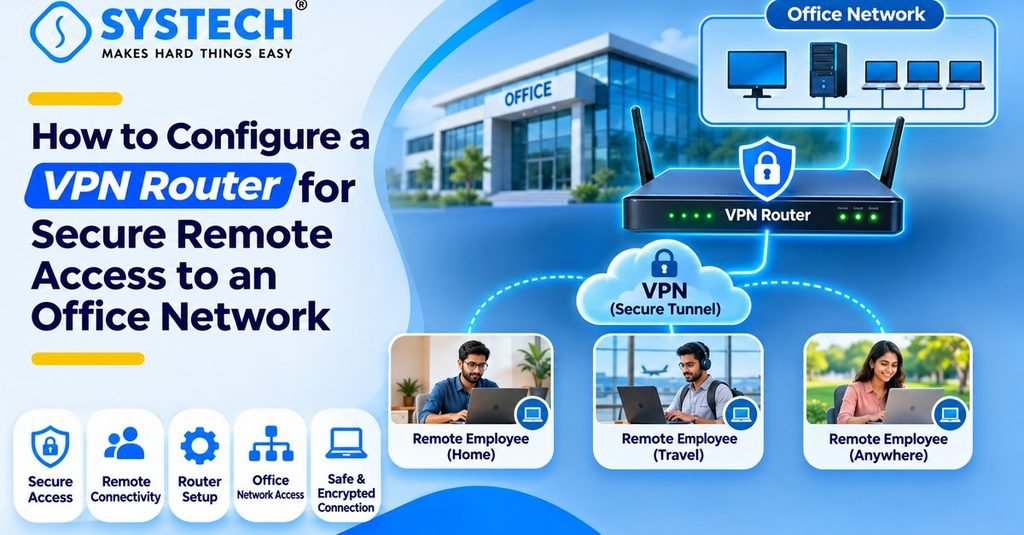
A remote-access VPN router allows an authorised employee outside the office to create an encrypted connection to the company network. After the tunnel is established, the employee can reach permitted internal resources such as a file server or business application using their private office IP address. The router acts as the VPN server, while the employee’s laptop or phone acts as the VPN client.
The setup generally involves confirming router support and internet reachability, selecting a supported VPN protocol, defining a VPN client address pool, creating individual user credentials, configuring the remote device, and testing access to approved office resources. The exact menu names and available protocols depend on the router model and firmware.
Important: L2TP by itself does not encrypt traffic. If a router supports L2TP, use it only with IPsec and only where the implementation remains supported and securely configured. For a new deployment, prefer a currently supported protocol such as IKEv2/IPsec, WireGuard or an appropriately hardened OpenVPN implementation when the router and client environment support it.
Table of Contents
What Is VPN Router Configuration for Remote Access?
VPN Router Configuration is the process of setting up a router or security gateway to accept authenticated VPN connections from authorised users over the internet. In an office environment, the router provides a secure entry point into selected parts of the private network. Understanding router configuration, IP addressing and network fundamentals is important for learners pursuing practical CCNA networking training in Trichy
For example, an employee working from home may need to open a file stored on an office server. Instead of publishing the server directly to the internet, the employee starts a VPN connection to the office router. The router authenticates the user, establishes the encrypted tunnel and applies the organisation’s access rules. The employee can then connect to the server through its private IP address, provided the VPN route and permissions allow it.
A VPN does not automatically make every internal system available to every connected user. Access should be limited to the resources and network segments required for that employee’s role.
Why do offices use a remote-access VPN?
Remote access to internal file servers, intranet sites and business applications.
Encrypted connectivity when employees work from home, travel or use an untrusted network.
Centralised authentication and access control through a VPN gateway.
Reduced need to expose internal services such as file sharing or remote desktop directly to the public internet.
Consistent logging and monitoring of remote connections.
VPN Server vs VPN Client: Understand the Difference
The terms VPN server and VPN client describe two different roles. This distinction is essential because the supplied video and intended article focus on inbound remote access to an office network.
For this guide, configure the office router as the VPN server. Do not follow consumer-router VPN-client instructions that ask you to upload a commercial provider’s .ovpn profile unless that is a separate requirement.
How Remote Access VPN Works
A remote employee first connects to the internet through a home broadband, mobile hotspot or another network. The employee’s VPN client then contacts the public address or hostname of the office VPN gateway. The gateway checks the configured authentication method and negotiates the tunnel. Once the connection is approved, the client receives an address from the VPN address pool and receives the routes needed to reach permitted office resources. These advanced routing and VPN concepts are also relevant to CCNP enterprise networking and VPN training in Trichy
Example: an office file server uses 192.168.10.20. A remote laptop connects to the VPN and receives 10.20.20.10 from the VPN pool. If the VPN gateway has the correct route and firewall policy, the laptop can access the file server through 192.168.10.20. The example addresses are illustrative; use the actual network plan for your office.
VPN Protocols: L2TP/IPsec, IKEv2, OpenVPN and WireGuard
The VPN protocol determines how the client and gateway authenticate, negotiate security and carry traffic. Choose a protocol supported by both the router and the employee devices, and check the vendor’s current security guidance before deployment.
L2TP alone does not provide encryption. Cisco’s L2TP over IPsec documentation describes the combined approach and its compatibility constraints; D-Link likewise explains that IPsec is required to protect L2TP traffic. Protocol availability and exact settings vary by product.
Avoid choosing a protocol only because it appears in an old tutorial. Check whether the router firmware and endpoint operating systems still support it, whether the vendor continues to maintain it, and whether it can enforce strong authentication.
Prerequisites Before Configuring an Office VPN
Router or firewall with a supported remote-access VPN server feature and current firmware.
Administrator access to the router’s management interface.
Working office internet connection and a known WAN/public IP address or suitable VPN hostname.
Confirmation that the ISP connection permits inbound VPN traffic; check for carrier-grade NAT (CGNAT).
Documented office LAN subnet, gateway and DNS server addresses.
An unused VPN client address pool that does not overlap with the office LAN or common remote-user networks.
VPN client support on employee laptops and mobile devices.
Named user accounts, strong credentials and multi-factor authentication where supported.
Firewall rules that allow the VPN service and restrict access to approved internal systems.
A test account and a non-critical internal resource for validation.
L2TP alone does not provide encryption. Cisco’s L2TP over IPsec documentation describes the combined approach and its compatibility constraints; D-Link likewise explains that IPsec is required to protect L2TP traffic. Protocol availability and exact settings vary by product.
Avoid choosing a protocol only because it appears in an old tutorial. Check whether the router firmware and endpoint operating systems still support it, whether the vendor continues to maintain it, and whether it can enforce strong authentication.
Check public IP reachability and CGNAT
A remote-access VPN server must be reachable from outside the office. Compare the WAN IPv4 address shown in the router with the public IP reported by a trusted IP-check service. If the router WAN address is private or falls within the shared-address range 100.64.0.0/10, the connection may be behind CGNAT. In that situation, ordinary inbound port forwarding may not work.
Ask the ISP whether it can provide a public IPv4 address, a static IP, or another supported inbound-access option. Alternatives may include a supported IPv6 design or a VPN gateway hosted on a publicly reachable endpoint. Do not assume that changing router settings alone can bypass ISP-level CGNAT.
Example Office VPN Address Plan
Plan the address ranges before enabling the VPN server. The VPN client pool must be separate from the office LAN and any other routed networks.
These values are examples only. Confirm that the VPN pool does not overlap with the office LAN, another branch network, cloud network or commonly used home subnet. Overlapping subnets can cause a remote laptop to send traffic to its local home network instead of through the VPN.
How to Configure a VPN Server on a Router
Router interfaces differ by manufacturer, model and firmware. The following workflow explains the configuration concepts; use the exact vendor guide for the device in your office. Do not assume that every router has the same menu names or protocol options.
Step 1: Log in and confirm the WAN connection
Connect an administrator computer to the office network.
Open the router’s management address in a browser or use the vendor’s management application.
Sign in with an administrator account and confirm the WAN interface is online.
Record the WAN addressing information and determine whether the router is directly reachable from the internet.
Update to a supported firmware release after reviewing the vendor’s release notes and maintenance procedure.
Step 2: Open the remote-access VPN server settings
Locate the VPN, Remote Access VPN or VPN Server section.
Select a server mode intended for client-to-site or remote-user access.
Choose a currently supported protocol that is compatible with the router and employee devices.
Do not select a VPN Client mode intended to connect the office router to a commercial VPN provider.
Step 3: Configure the VPN tunnel and authentication
Set the protocol-specific parameters required by the vendor. Depending on the implementation, these may include a server certificate, trusted certificate authority, cryptographic proposals, pre-shared key, user authentication method and client profile settings. Use unique, strong secrets and follow current vendor security recommendations. Do not reuse the router administrator password as a VPN user password.
If using L2TP, enable IPsec protection and configure the matching IPsec authentication and encryption settings on both ends. L2TP without IPsec is not a secure remote-access configuration.
Step 4: Define the VPN IP address pool
Enter a dedicated client address range, such as 10.20.20.10 to 10.20.20.100 in the example plan.
Confirm that the pool does not overlap with the office LAN or other routed networks.
Set the appropriate subnet mask or prefix according to the router’s instructions.
Configure DNS servers for internal name resolution only if remote users are authorised to use them.
Check whether the router automatically creates the required return route or whether a separate route is needed.
Step 5: Create individual VPN user accounts
Create a separate account for each employee or approved contractor.
Use strong, unique passwords or certificate-based authentication as supported.
Enable multi-factor authentication wherever the platform supports it.
Assign access according to the user’s job role; avoid shared accounts.
Set account expiry and disable access promptly when a person leaves or no longer needs it.
Step 6: Configure routes and firewall access
The VPN client must know which office subnets should travel through the tunnel. Configure the required route or split-tunnel policy, depending on the organisation’s security design. Add firewall rules that allow only the necessary traffic from the VPN pool to approved internal hosts and ports. For example, a user who needs a file server may require access to that server’s approved file-sharing service not unrestricted access to every office device. These concepts can be explored further through firewall configuration and network security training in Trichy
If the VPN gateway and office LAN are on different interfaces or VLANs, confirm that the internal network has a valid return path to the VPN client pool. Depending on the topology, this may require a route on the LAN gateway or a supported NAT design. Avoid adding broad allow-all rules just to make a test succeed.
Step 7: Save, apply and document the configuration
Review the settings for protocol, authentication, client pool, DNS, routes and firewall policies.
Apply the configuration during an approved maintenance window if the change could interrupt existing connectivity.
Export or securely back up the router configuration.
Record the VPN hostname, supported client type, user onboarding process and recovery contact in the organisation’s secure IT documentation.
How to Configure the Remote Laptop or VPN Client
The remote device must use a VPN client profile that matches the server’s protocol and authentication configuration. The exact screens vary by operating system and VPN platform.
Connect the laptop to a working external internet connection, such as home broadband or a mobile hotspot.
Open the operating system’s VPN settings or the vendor-provided VPN application.
Create a new VPN profile using the office VPN public IP address or hostname.
Select the same VPN protocol configured on the office gateway.
Enter the required username, certificate or other authentication details. For L2TP/IPsec, enter the matching IPsec information as specified by the administrator.
Save the profile and connect.
Confirm that the client reports an authenticated, established connection and has received an address from the VPN pool.
Share VPN configuration files and secrets through an approved secure channel. Do not publish pre-shared keys, certificates, passwords or internal network details in public documents or chat groups.
How to Verify Secure Access to the Office Network
A VPN icon or a connected status is not enough to prove that the employee can reach the intended office resources. Test the tunnel, assigned address, routes, DNS and application access.
For Windows, administrators can inspect network configuration with ipconfig /all and routes with route print. On macOS or Linux, use the platform’s network and route inspection commands. Use only diagnostic commands appropriate to the operating system and the organisation’s policy.
Test from a genuinely external network. Testing from inside the office may produce misleading results because local routing can reach the server without using the VPN.
Security Best Practices for Remote Employee VPN Access
Enable MFA for all remote VPN users wherever possible, especially administrators and privileged users. Use individual accounts and remove dormant or departed-user access promptly. Keep the VPN gateway firmware and client software patched; monitor vendor security advisories. Learning how to protect networks, manage security controls and reduce cyber risks is part of practical cyber security training in Trichy
Not sure which route fits you?
Tell us your stream and what you are hoping for, and we will tell you honestly which option suits.
Get course detailsCommon VPN Router Configuration Problems and Fixes
Special case: double NAT and CGNAT
If an ISP modem/router sits in front of the VPN router, the VPN gateway may be behind double NAT. The upstream device may need a supported bridge mode or carefully configured forwarding to the VPN gateway. If the ISP uses CGNAT, forwarding on the customer router alone is usually insufficient because the customer does not control the ISP’s shared public address. Confirm the topology and ISP service before changing firewall rules.
VPN Router vs Software VPN vs Site-to-Site VPN
A router-based VPN can be convenient for a small office, but the right choice depends on the number of users, required security controls, available bandwidth, logging, redundancy and the sensitivity of internal systems. A business firewall or dedicated VPN gateway may be more appropriate where stronger identity integration, segmentation and monitoring are required.
Frequently asked questions
What is VPN Router Configuration?
It is the process of configuring a router or security gateway to accept authenticated VPN connections and provide authorised remote users with secure access to selected private network resources.
Can employees access an office server from home using a VPN router?
Yes. If the VPN tunnel, routes, firewall rules and user permissions are configured correctly, an employee can access an approved office server through its private IP address.
Is a VPN server the same as a VPN client on a router?
No. A VPN server accepts incoming connections from remote users. A VPN client connects outward to another VPN server, such as a commercial VPN provider. This guide covers the server role.
What is an L2TP VPN configuration?
It is a setup that uses Layer 2 Tunneling Protocol to create a tunnel. L2TP does not encrypt traffic by itself, so it must be protected with IPsec when used for secure remote access.
What is a VPN IP address pool?
It is the range of private IP addresses assigned to devices after they connect to the VPN. The pool should not overlap with the office LAN or other routed networks.
Does a remote-access VPN require a static public IP address?
A static public IP is convenient but not always mandatory. A dynamic DNS hostname may work with a changing public IP. The office gateway must still be reachable from the internet; CGNAT can prevent ordinary inbound connections.
Why does the VPN connect but the office server not open?
The tunnel may be established while the required route, firewall permission, DNS setting or return route is missing. Test access by private IP first, then check DNS and access policies.
Can every VPN user access all office computers?
No. Access should be controlled by user role, network segmentation and firewall rules. Give each person access only to the resources required for their work.
Is a router VPN enough to secure an office network?
No. A VPN protects the remote connection, but the organisation still needs patched devices, MFA, endpoint security, least-privilege access, monitoring and secure internal network design.
Which VPN protocol should an office use?
Choose a currently supported protocol that meets the organisation’s security requirements and works with its router and client devices. IKEv2/IPsec, maintained OpenVPN and WireGuard may be options; use L2TP only with IPsec and where the platform’s support and security posture are acceptable.
Learn Networking and Cybersecurity with SYSTECH Group
Understanding VPN Router Configuration requires practical knowledge of routing, IP addressing, firewall rules, authentication and network security. Learners who want to strengthen their skills in router configuration, network devices and infrastructure can explore hands-on hardware and networking training in Trichy at SYSTECH Group.
Final Thoughts
A well-planned remote-access VPN gives employees a secure way to reach approved office resources without exposing internal servers directly to the public internet. Successful VPN Router Configuration depends on more than enabling a VPN option: the gateway must be reachable, the protocol must be supported and securely configured, the VPN address pool must be planned, and routes and firewall policies must enforce the right level of access.
Before deployment, test the complete connection from an external network, verify access to the intended private resources, confirm that unauthorised access is blocked and document how accounts will be managed. Review the configuration regularly and keep the VPN gateway updated.

Written by
Leo Antony Raj
Senior Trainer · Networking, Cyber Security and Cloud
Leo Antony Raj has over 20 years of hands-on experience in hardware, networking, server configuration, ethical hacking and cloud computing. He has trained more than 10,000 students, and he teaches networking first, because every security and cloud role is built on it.