
By Leo Antony Raj, Senior Trainer, Systech Group 20+ years in networking and cybersecurity · Updated November 2026.
6 Min read
In short
USB security risks can arise when untrusted storage devices, phones, cables or other peripherals are connected to a computer. A malicious USB drive may carry malware, while a device that imitates a keyboard can send unauthorised commands. Some peripheral interfaces can also expose systems to data theft or other hardware-level attacks. A normal phone connection does not automatically enable remote control. Reduce risk by using trusted devices and cables, reviewing USB permissions, avoiding unnecessary debugging access, keeping operating systems and endpoint protection updated, and applying device-control policies.
Table of Contents
Can a Phone Hack a Laptop Through USB?
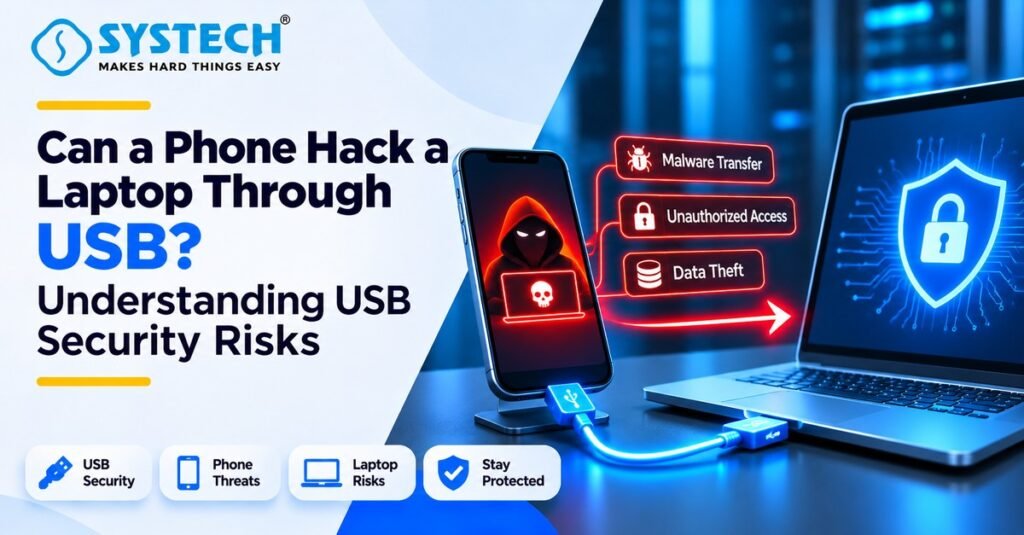
A phone can be involved in a security incident through a USB connection under specific conditions, but simply plugging a phone into a laptop does not mean the phone can take control of it. USB is a connection standard used for charging, data transfer and communication with many types of peripherals. The level of access depends on how the connected device identifies itself and what the computer allows it to do.
For example, a phone may request permission to transfer files, share an internet connection or use a debugging interface. A user may also have installed software that allows the phone and laptop to communicate. If the device is malicious, compromised or granted excessive permissions, the connection can create a security risk.
A specialised peripheral may also present itself as a keyboard or another trusted device. If the operating system accepts its input, it may be able to perform actions available to that device type. This is different from a normal smartphone automatically gaining administrator access or unrestricted remote control.
What Determines the Risk?
The type of connected device and how it identifies itself to the laptop.
The USB mode selected by the user, such as charging, file transfer or tethering.
Whether the user approves file access, debugging or other device permissions.
The operating system version, security configuration and installed updates.
Whether the connected device or cable contains malicious hardware or firmware.
Whether the laptop runs vulnerable software or grants excessive privileges.
The correct conclusion is that USB connections can introduce attack paths, but the presence of a USB cable alone is not proof of compromise.
What Happens When You Connect a Phone to a Laptop?
When a smartphone is connected to a laptop, the operating system detects the USB device and identifies the functions it offers. The phone may initially remain in a charging-only state or display a notification asking the user to select a connection mode. The available choices vary by phone model and operating system. Understanding how devices communicate and establish network connections is also an important part of practical networking skills covered in a CCNA training institute in Chennai with practical networking labs.
The exact menu names and behaviour differ between Android versions, phone manufacturers and laptop operating systems. If a phone asks you to approve a computer, debugging key or file-access request that you do not recognise, decline it and disconnect the device.
Common USB Security Risks and Attack Methods
Malware on Removable Storage
A USB flash drive or external storage device can carry malicious files. If a user opens an infected file or runs a malicious program, malware may execute on the computer. In an organisation, a removable drive moved between multiple computers can become a route for malware propagation.
Not every file on a USB drive is malicious, and connecting storage does not always execute malware automatically. The outcome depends on operating-system protections, user actions, file types, vulnerabilities and security configuration. Keep removable-media scanning enabled and do not open unexpected files.
Malicious HID or Keyboard-Emulation Devices
HID stands for Human Interface Device. Keyboards and mice are common HID peripherals. Some specialised malicious USB devices can impersonate a keyboard and send input to a computer. If the operating system accepts that input, the device may attempt to trigger actions using the permissions of the active user.
This behaviour is often associated with USB Rubber Ducky-style devices. Understanding how malicious peripherals exploit device trust and user permissions is an important topic in Cybersecurity training in Chennai with practical ethical hacking sessions. The important security lesson is that a device can look like a simple USB accessory while presenting itself to the computer as a different type of peripheral.
BadUSB and Firmware Abuse
BadUSB is a term used for attacks that abuse the ability of some USB devices to change or misuse their device identity or firmware behaviour. A compromised or specially programmed device may present itself as a trusted device class, such as a keyboard or network adapter, rather than behaving only as ordinary storage.
This risk is different from a normal infected file. Traditional file scanning may not be sufficient to assess every device-level behaviour. Understanding these hardware-level threats, device-control policies and endpoint security measures is part of practical learning through a Cybersecurity course in Coimbatore with hands-on practical training.
Malicious Cables and Peripherals
A cable or peripheral may contain additional electronics rather than functioning only as a passive connector. A malicious accessory could attempt to act as a data device or input peripheral. This is why unknown charging cables, public charging accessories and untrusted USB adapters should be treated carefully.
Use a trusted wall charger or a known charge-only accessory when data transfer is unnecessary. A charge-only cable can reduce the data connection risk, but it does not replace general device and physical security.
Unauthorised Data Access or Theft
If a device is granted access to files or the laptop is configured to trust it, data may be copied or exposed. Risks can include confidential documents, personal files, business information and credentials stored in accessible locations. The level of access depends on the operating system, permissions and security controls.
Peripheral and Direct-Memory-Access Risks
Some high-speed peripheral interfaces and hardware configurations can create risks beyond ordinary file transfer. The UK National Cyber Security Centre includes DMA-capable interfaces, alternative boot paths and malicious peripherals in its device-security guidance. These risks are configuration-dependent and should be considered in higher-security environments.
What Are USB Rubber Ducky and USB Drop Attacks?
USB Rubber Ducky
A USB Rubber Ducky is a specialised device designed to present itself to a computer as a keyboard-like input device. It can send pre-programmed keystrokes when connected. In a security assessment, this illustrates why organisations should not assume that every USB device is ordinary storage.
At a high level, the risk is that the computer may accept input from an untrusted device. The device does not need to behave like a normal flash drive to create a security issue. Understanding these attack techniques and their prevention is covered in Cybersecurity training institute in Trichy for ethical hacking and network security. Do not connect unknown USB accessories to a work or personal laptop.
USB Drop Attack
A USB drop attack involves deliberately leaving a USB device in a place where someone may find it and connect it to a computer. The device may contain malware or be designed to behave as a malicious peripheral. The attacker relies on curiosity or the assumption that the found device is harmless.
If you find an unknown USB drive in a public place, office, classroom or parking area, do not plug it into your laptop to identify its owner. Hand it to the organisation’s IT or security team, or follow the local lost-property process.
What the Video Demonstration Shows and Does Not Prove
The supplied brief describes a specialised Android-based security phone running a penetration-testing environment. The video summary says that connecting the phone to a laptop appears to trigger background activity and that a folder is created and deleted on the laptop through the phone.
This demonstration illustrates that a USB-connected device can interact with a laptop in ways that may create security concerns. However, the brief explicitly states that the exact attack mechanism is not established by the demonstration alone.
For an accurate technical article, it is important not to label the demonstration as a confirmed BadUSB, HID injection or remote-access exploit unless the device behaviour and mechanism are independently documented. The article therefore explains these established attack categories separately.
Warning Signs of Suspicious USB Activity
A single unexpected prompt does not prove that a laptop has been compromised. However, unusual behaviour after connecting a new USB device should be investigated, especially on a work computer.
The laptop detects an unexpected keyboard, network adapter or other device that you did not intend to connect.
An unfamiliar USB permission, debugging or device-authorisation prompt appears.
A phone or accessory requests file access when you only intended to charge it.
Unknown files, folders or applications appear after connecting removable media.
Endpoint protection reports a suspicious file or blocks an unexpected process.
The operating system repeatedly connects and disconnects an unfamiliar peripheral.
The laptop shows unexpected network changes after a USB device is connected.
A device asks you to install software or drivers from an unfamiliar source.
If you notice these signs, stop interacting with the device. Do not approve unfamiliar prompts or run files to investigate. Follow the response steps in Section 9, especially if the laptop contains business or sensitive data.
Not sure which route fits you?
Tell us your stream and what you are hoping for, and we will tell you honestly which option suits.
Get course detailsHow to Protect a Windows Laptop from USB Threats
The best protection combines safe user behaviour, operating-system security, endpoint protection and controlled device access. The exact settings available depend on the Windows edition, device-management configuration and organisation policy.
Use trusted USB devices and cables. Prefer accessories from known manufacturers or approved IT suppliers. Do not connect found USB drives or unknown peripherals.
Choose charging-only mode when appropriate. If you only need to charge a phone, avoid enabling file transfer or other data modes unless required and supported by the device.
Review phone permissions. Approve file access only when you intend to transfer data. Decline unfamiliar device-authorisation or debugging requests.
Keep USB debugging disabled unless needed. On Android devices, enable developer and debugging features only for a specific trusted task, and remove old authorised computers when no longer required.
Keep Windows and applications updated. Install supported security updates and restart when required so protections are fully applied.
Use reputable endpoint protection. Keep real-time protection enabled and allow security software to scan removable media according to its policy.
Avoid running files from unknown drives. Do not open unexpected executables, scripts, shortcuts or documents from untrusted media.
Restrict removable storage where appropriate. In managed environments, use device-control policies to block or allow specific device classes and approved hardware.
Use a standard user account for everyday work. Avoid using an administrator account for routine browsing and file handling.
Protect boot and firmware settings. Follow vendor guidance for secure boot, firmware updates and restrictions on alternative boot paths where supported.
A Simple Personal USB Safety Checklist
Organisation-Level USB Security Controls
Businesses often have more devices, users and data exposure than a single home laptop. A written peripheral policy helps reduce inconsistent decisions and makes it easier to investigate suspicious activity.
Organisations should balance security with operational requirements. Some teams need removable storage for approved business tasks. Rather than relying only on a blanket rule, define permitted use, approved devices, encryption requirements, scanning and exception approval.
What to Do After Connecting a Suspicious USB Device
If you accidentally connect an unknown USB device, do not panic or continue exploring its contents. Take a measured response based on whether the laptop is personal or managed by an organisation.
Stop interacting with the device. Do not open files, approve prompts, install drivers or enter credentials.
Disconnect the USB device safely if the system is stable and doing so will not create an additional risk. If it is a work device or there is an active security alert, follow your organisation’s incident-response instructions.
Report the incident to IT or the security team if the laptop is managed by an employer, school or other organisation. Provide the time, device description and actions taken.
Run an endpoint security scan using the approved security product. Follow any alerts or remediation instructions.
Check recent device and security notifications. Do not delete logs or suspicious files before the security team has reviewed them.
Change credentials from a known-clean device if there is a credible reason to suspect that credentials may have been exposed. Follow the organisation’s guidance.
Preserve the device if an investigation is required. Do not reconnect it to another computer or attempt to inspect it yourself.
Document the outcome and apply any recommended updates or device restrictions.
If sensitive business data may be involved, report the incident promptly even if the laptop appears to work normally. Some security incidents do not produce obvious symptoms.
Frequently asked questions
Can a phone hack a laptop through USB?
It is possible for a USB-connected device to create security risks under specific conditions, but a normal phone connection does not automatically provide remote control. The result depends on device behaviour, USB mode, permissions, software and vulnerabilities.
Is it safe to connect my Android phone to my laptop?
It is generally safe when you use trusted devices and cables, keep both systems updated and approve only the permissions you need. Choose charging-only mode when you do not need data transfer.
What is a BadUSB attack?
BadUSB refers to attacks that abuse USB device identity or firmware behaviour. A malicious device may present itself as a different type of peripheral, such as a keyboard, and attempt actions that the computer accepts.
What is a USB Rubber Ducky?
It is a specialised USB device that can identify itself as a keyboard-like input device and send pre-programmed keystrokes. It demonstrates why unknown USB peripherals should not be trusted automatically.
What is a USB drop attack?
A USB drop attack involves leaving a malicious or unknown USB device where someone may find it and connect it to a computer. The safest response is not to plug in found USB devices.
Can a USB cable contain malware?
Some specialised cables or accessories may include additional electronics or malicious functionality. Use trusted cables and accessories, especially when connecting to work devices.
Does charging-only mode prevent every USB attack?
Charging-only mode reduces normal data-transfer exposure when correctly supported, but it is not a guarantee against every hardware or physical security risk. Use trusted accessories and keep device security controls updated.
Should I keep USB debugging enabled on Android?
Keep USB debugging disabled unless you need it for a specific development or troubleshooting task. Approve debugging access only for trusted computers and remove old authorisations when appropriate.
What should I do if I connect an unknown USB drive?
Do not open its files or run programs. Disconnect it safely, report it to IT if it is a work device and run the approved endpoint security checks.
How can a company prevent USB security threats?
Use device-control policies, approved-device allow-lists, removable-media scanning, least privilege, endpoint detection, device inventories, user training and a clear incident-reporting process.
Learn Cybersecurity and Networking with SYSTECH Group
USB security is part of a wider endpoint and network-security skill set. Understanding operating systems, device permissions, malware behaviour, network communication and security controls helps learners assess risks and protect computer systems. These networking fundamentals can also be developed through a CCNA course in Trichy with hands-on Cisco lab training.
Final Thoughts
USB connections make it easy to charge devices, transfer files and connect peripherals, but they can also introduce security risks when a device is untrusted or granted unnecessary access. Threats include malware on removable storage, malicious keyboard-like devices, BadUSB behaviour, unsafe cables and unauthorised data access.
A phone does not automatically hack a laptop just because it is connected through USB. The risk depends on the device, connection mode, permissions, software and security configuration. Use trusted accessories, review prompts carefully, keep endpoint protection updated, restrict removable media where appropriate and report suspicious activity quickly.
For organisations, combine technical device controls with user awareness, least privilege, endpoint monitoring and a clear incident-response process. The goal is to make USB use safe without allowing unnecessary peripheral access.

Written by
Leo Antony Raj
Senior Trainer · Networking, Cyber Security and Cloud
Leo Antony Raj has over 20 years of hands-on experience in hardware, networking, server configuration, ethical hacking and cloud computing. He has trained more than 10,000 students, and he teaches networking first, because every security and cloud role is built on it.