
By Arjun Kumar, Senior Trainer, Systech Group 15+ years in Network Security and Cloud Architecture · Updated October 2026.
9 min read
In short
EtherChannel combines multiple physical Ethernet links between two Cisco switches into one logical link called a Port-Channel. To configure it, enable LACP on both switches, use matching port settings, and verify the configuration with show etherchannel summary. Three 1 Gbps links can provide up to 3 Gbps of aggregate bandwidth, but a single traffic flow may use only one link. EtherChannel also provides redundancy because traffic can continue over the remaining active links if one cable fails. For practical networking skills, learn switch configuration, VLANs, and troubleshooting through hands-on CCNA training.
Table of Contents
Introduction
When two Cisco switches are connected using multiple Ethernet cables, you might expect all the links to work together automatically. However, connecting three cables between the same two switches does not automatically create one combined link.
To use these connections together, you need to configure EtherChannel on both switches. EtherChannel combines multiple physical Ethernet links into one logical link called a Port-Channel. This provides higher aggregate bandwidth across multiple traffic flows and helps maintain connectivity when one member link fails.
For students learning switching concepts through a CCNA course in Chennai, EtherChannel is an important practical topic because it connects switch configuration, link redundancy, Spanning Tree Protocol (STP), and network troubleshooting.
This guide explains how EtherChannel works, how to configure it using LACP, how to check whether the links are bundled correctly, and how to solve common configuration problems.
What Is EtherChannel in Cisco Switches?
EtherChannel is a Cisco term for combining multiple physical Ethernet connections into one logical interface. Link aggregation is the general networking concept behind it.
For example, imagine two switches connected by three Gigabit Ethernet cables. Without link aggregation, Spanning Tree Protocol may block redundant Layer 2 paths to prevent network loops. The links do not automatically operate as one combined logical connection.
When you configure EtherChannel correctly, the three physical interfaces become members of one Port-Channel interface.
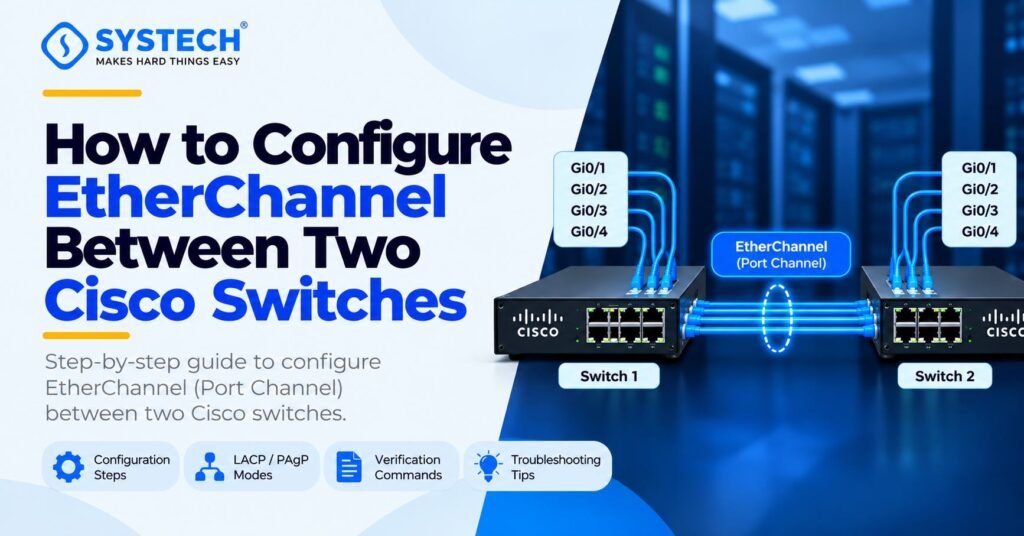
Example: Three physical links combined
Switch 1
Gi0/1 · Gi0/2 · Gi0/3
Switch 2
Gi0/1 · Gi0/2 · Gi0/3
Conceptual illustration: the three physical links remain separate cables, but the switches treat them as one logical channel when the configuration is successful.
Why is EtherChannel used?
EtherChannel is useful for several reasons:
- Higher aggregate bandwidth: Multiple physical links can carry traffic for different flows.
- Redundancy: If one bundled cable fails, the remaining active member links can continue carrying traffic.
- Simpler STP operation: Spanning Tree Protocol sees the bundle as one logical link rather than treating each member as an independent path.
- Better use of existing connections: Multiple compatible physical links can work together instead of leaving redundant links unused
Remember that three 1 Gbps links can provide up to 3 Gbps of aggregate link capacity under suitable conditions, but this does not mean that every individual file transfer will reach 3 Gbps.
How Does EtherChannel Work?
EtherChannel groups compatible physical interfaces into a single logical Port-Channel. The switches use a negotiation protocol, or matching manual configuration, to decide whether the links can form the bundle.
The switch then distributes traffic across the available member links using a load-balancing method.
EtherChannel protocols
There are three common configuration approaches.
LACP is defined by the IEEE 802.1AX link aggregation standard, historically associated with IEEE 802.3ad. It allows compatible ports to negotiate their membership in a logical channel.
LACP active and passive modes
LACP supports two main negotiation modes:
- Active: The switch starts sending LACP packets to negotiate the channel.
- Passive: The switch responds to LACP packets but does not start negotiation on its own.
An active port can form a channel with another active or passive port. Two passive ports will not start the negotiation themselves.
For the configuration below, use channel-group 1 mode active on both switches. This makes the example straightforward to follow.
What Do You Need Before Configuring EtherChannel?
Before entering the commands, check these requirements:
- Two Cisco switches that support EtherChannel and LACP.
- Three compatible Ethernet ports on each switch.
- Three physical cables connecting the selected ports.
- Access to the Cisco IOS command-line interface.
- Matching port settings on both switches.
- A clear understanding of whether the connection should operate as an access link or a trunk link.
In this example, the inter-switch connection will be a Layer 2 trunk that carries VLAN traffic. If your environment requires only one VLAN, an access EtherChannel may be more appropriate.
Example network setup
The port names are examples. Check the actual interface names on your switches before using the commands.
Step 1: Check the Physical Interfaces
Connect the three cables as follows:
- SW1 Gi0/1 to SW2 Gi0/1
- SW1 Gi0/2 to SW2 Gi0/2
- SW1 Gi0/3 to SW2 Gi0/3
Check the interface status on each switch:
enable
show interfaces status
Confirm that the selected ports exist and that the cables are connected. If a port is down, check the cable, transceiver, interface status, and device compatibility before continuing.
Step 2: Configure EtherChannel on Switch 1
Open the command-line interface of Switch 1 and enter the following commands.
enable
configure terminal
interface range gigabitEthernet0/1 – 3
switchport
switchport mode trunk
switchport trunk allowed vlan 10,20,30
channel-group 1 mode active
no shutdown
exit
interface port-channel 1
switchport mode trunk
switchport trunk allowed vlan 10,20,30
no shutdown
exit
end
What do these commands do?
The port names are examples. Check the actual interface names on your switches before using the commands.
Step 1: Check the Physical Interfaces
Connect the three cables as follows:
- SW1 Gi0/1 to SW2 Gi0/1
- SW1 Gi0/2 to SW2 Gi0/2
- SW1 Gi0/3 to SW2 Gi0/3
Check the interface status on each switch:
enable
show interfaces status
Confirm that the selected ports exist and that the cables are connected. If a port is down, check the cable, transceiver, interface status, and device compatibility before continuing.
Step 2: Configure EtherChannel on Switch 1
Open the command-line interface of Switch 1 and enter the following commands.
enable
configure terminal
interface range gigabitEthernet0/1 – 3
switchport
switchport mode trunk
switchport trunk allowed vlan 10,20,30
channel-group 1 mode active
no shutdown
exit
interface port-channel 1
switchport mode trunk
switchport trunk allowed vlan 10,20,30
no shutdown
exit
end
The commands do
- interface range gigabitEthernet0/1 – 3 selects the three physical interfaces.
- switchport mode trunk configures the interfaces as Layer 2 trunks.
- switchport trunk allowed vlan 10,20,30 allows the specified VLANs across the trunk.
- channel-group 1 mode active assigns the physical ports to channel group 1 and enables LACP negotiation.
- interface port-channel 1 selects the logical interface created for the bundle.
- no shutdown enables the selected interfaces if they have been administratively disabled.
The physical interfaces and the logical Port-Channel must have compatible settings. Some switch models may inherit or synchronize certain settings differently, so always verify the running configuration.
Step 3: Configure EtherChannel on Switch 2
Now configure Switch 2 using the corresponding ports and the same logical channel number.
enable
configure terminal
interface range gigabitEthernet0/1 – 3
switchport
switchport mode trunk
switchport trunk allowed vlan 10,20,30
channel-group 1 mode active
no shutdown
exit
interface port-channel 1
switchport mode trunk
switchport trunk allowed vlan 10,20,30
no shutdown
exit
end
Both switches use channel group 1 and LACP active mode. The trunk settings also match, including the allowed VLAN list.
Important: This is an example for Cisco IOS switches with the relevant interface syntax and feature support. Commands may differ on Catalyst models, older IOS releases, Nexus switches, and other vendors. Verify the platform-specific documentation before applying a configuration to a production network.
Step 4: Verify the EtherChannel Configuration
After configuring both switches, check whether all three physical links have joined the logical channel.
Run this command on each switch:
show etherchannel summary
A successful configuration should show Port-Channel 1 using LACP and the expected member ports in the bundled state.
A simplified example of the expected output is:
Group Port-channel Protocol Ports
——+————-+———+————————–
1 Po1(SU) LACP Gi0/1(P) Gi0/2(P) Gi0/3(P)
This is illustrative output; actual formatting and status codes can vary by Cisco platform and software version.
How to read the output
- Po1 identifies Port-Channel 1.
- LACP indicates the negotiation protocol.
- P beside a member port typically means that the port is successfully bundled.
- S generally indicates a Layer 2 Port-Channel.
- U generally indicates that the Port-Channel is in use.
If all three member ports show the bundled state, the EtherChannel is operating as intended.
You can also run these commands:
show interfaces port-channel 1
show lacp neighbor
show interfaces trunk
show running-config
These help you inspect the logical interface, the LACP partner, trunk status, and configuration settings. Check the command reference for your switch model if the exact syntax differs.
Step 5: Test the Connection and Link Redundancy
Verification should go beyond seeing the Port-Channel interface in the summary.
Use this practical test:
- Confirm that the Port-Channel is up and the three ports are bundled.
- Check that VLANs 10, 20, and 30 are allowed on the trunk.
- Connect test devices or endpoints in the appropriate VLANs.
- Verify connectivity across the switches with a suitable ping or application test.
- In a controlled lab, disconnect one member cable and check that the Port-Channel continues operating through the remaining links.
- Reconnect the cable and verify that the member rejoins the bundle.
If you are learning network operations as part of a cybersecurity course in Chennai, this type of test also demonstrates why network redundancy matters for availability and incident investigation.
Do not remove cables from a production network without authorization and an approved maintenance or testing plan.
Does EtherChannel Use All Three Links Simultaneously?
For example, if three 1 Gbps links form an EtherChannel:
- Several different traffic flows may be distributed across the three links.
- One large file transfer may be assigned to a single member link, depending on the load-balancing algorithm and the traffic’s source and destination values.
- If one member link fails, the remaining active links can continue carrying traffic, although the total available capacity is reduced.
The exact distribution depends on the platform, algorithm, traffic pattern, and number of active links. EtherChannel does not guarantee that each individual transfer will achieve the sum of the speeds of all three links.
Common EtherChannel Problems and How to Fix Them
Even when the commands appear correct, EtherChannel may fail to form or may bundle fewer links than expected.
Cisco’s configuration guidance emphasizes compatible port settings, matching trunk parameters, and correct channel membership. Incorrect static configuration can also cause packet loss or Layer 2 loops.
Not sure which route fits you?
Tell us your stream and what you are hoping for, and we will tell you honestly which option suits.
Get course detailsUseful troubleshooting commands
show etherchannel summary
show lacp neighbor
show interfaces status
show interfaces trunk
show interfaces port-channel 1
show logging
Use the results to narrow down the cause instead of repeatedly changing configuration commands without checking the interface state.
For a broader understanding of how attackers and defenders examine network traffic and infrastructure, learners can also explore the ethical hacking course in Chennai, which builds on networking and security fundamentals.
EtherChannel Best Practices
Follow these practices when configuring EtherChannel in a lab or a business network.
- Use LACP when both devices support it and dynamic negotiation is appropriate.
- Ensure that all member ports have compatible speed, duplex, VLAN, and trunk settings.
- Use the same channel-group number for the intended bundle on each switch.
- Configure the correct Port-Channel interface and verify its settings.
- Check the allowed VLAN list on both sides of a trunk.
- Use show etherchannel summary and LACP verification commands after making changes.
- Test link failure and recovery in a controlled environment.
- Document the port assignments and configuration before making changes.
Remember that the logical Port-Channel is the interface that represents the combined connection. For Layer 2 configurations, keep its settings consistent with the intended configuration of the member links.
Practical Lab Exercise: Configure and Verify Three Links
Use the following exercise to confirm that you understand the complete process.
EtherChannel lab checklist
Lab progress
0 of 8
Connect three physical cables between the two switches
Check the interface status on both switches
Configure LACP active mode on all six member ports
Configure matching trunk and VLAN settings
Run show etherchannel summary on both switches
Confirm that all three links are bundled
Test connectivity across the trunk
Test one-link failure in a controlled lab
Reset checklist
After completing the exercise, explain why the three physical links appear as one logical interface, why a single connection may not use all three links, and what happens when one member cable fails.
Conclusion
Configuring EtherChannel between two Cisco switches allows multiple physical connections to operate as one logical link. By using LACP, matching the port settings, and verifying the Port-Channel, you can improve aggregate bandwidth and provide redundancy if a member link fails.
The most important lesson is that three cables alone do not create a combined connection. You must configure both switches correctly and confirm that all intended links are bundled. You should also remember that load balancing does not guarantee that a single connection will use the full combined bandwidth.
If you want to build stronger networking skills, explore the CCNA training in Chennai at Systech Group to develop your understanding of switching, VLANs, EtherChannel, routing, and network troubleshooting through structured learning and practical exercises.
Frequently asked questions
What is EtherChannel in Cisco switches?
EtherChannel combines multiple compatible Ethernet interfaces into one logical link, providing aggregate bandwidth and link redundancy.
Do three Ethernet cables automatically increase bandwidth?
No. The switches must be configured to form an EtherChannel or an equivalent link aggregation group. Without that configuration, the cables remain separate links.
Which protocol should I use to configure EtherChannel?
LACP is a common choice because it is an open-standard protocol supported by many enterprise switches. PAgP is another option on supported Cisco equipment, while static mode requires matching manual configuration.
What is the difference between LACP active and passive mode?
Active mode starts LACP negotiation, while passive mode responds to negotiation initiated by another device. Active/passive and active/active combinations can form a channel; passive/passive will not initiate one.
How do I check whether EtherChannel is working?
Use show etherchannel summary to inspect the Port-Channel and member ports, and use show lacp neighbor to check the LACP partner.
Can EtherChannel work if one cable fails?
Yes. If the remaining links are healthy and the Port-Channel retains enough active members to operate, traffic can continue over the remaining links. Available aggregate bandwidth will be lower.
Why are some EtherChannel ports not bundled?
Common causes include mismatched VLAN or trunk settings, incompatible speed or duplex settings, incorrect LACP modes, physical link issues, or channel configuration conflicts.
Can EtherChannel combine links of different speeds?
This depends on the switch platform and its supported configuration rules. For a reliable configuration, use compatible interfaces with matching settings and consult the documentation for the specific model.
Does one file transfer use all three EtherChannel links?
Not necessarily. Traffic is distributed according to the load-balancing algorithm. A single flow may remain on one member link, while different flows can be distributed across multiple members.
Is EtherChannel the same as a trunk?
No. EtherChannel combines physical links into a logical interface. A trunk carries traffic for multiple VLANs. An EtherChannel can itself be configured as a trunk.