How to Disavow Backlinks in Google Search Console: Step-by-Step Guide
Reading Time: 9minutes
Introduction
Managing your website’s backlink profile is a key part of maintaining strong SEO performance. While high-quality backlinks can boost your rankings, low-quality or spammy backlinks can negatively impact your site and even lead to penalties. Thankfully, Google provides a tool in Google Search Console (GSC) to help you manage unwanted backlinks: the Disavow Tool.
In this guide, we’ll explain what backlinks to disavow, when to use the tool, and how to safely disavow links step by step. We’ll also provide tips to avoid common mistakes and keep your backlink profile healthy.
Why You Might Need to Disavow Backlinks
Backlinks are considered “votes” for your website in Google’s ranking system. However, not all votes are beneficial. Some links can harm your SEO, including:
Spammy backlinks from low-quality websites.
Irrelevant links from sites outside your niche.
Paid or unnatural links that violate Google’s guidelines.
If your site has a significant number of these links, you risk being penalized. The Disavow Tool allows you to tell Google which links you do not want to count toward your site’s ranking.
⚠️ Note: Only disavow links after attempting to manually remove them by contacting webmasters. Disavowing should be a last resort.
How to Safely Disavow Backlinks
Safeguard your website from harmful backlinks and ensure optimal SEO performance. Discover how to spot spammy links, create a properly formatted disavow file, and upload it safely in Google Search Console to maintain a clean, authoritative backlink profile.
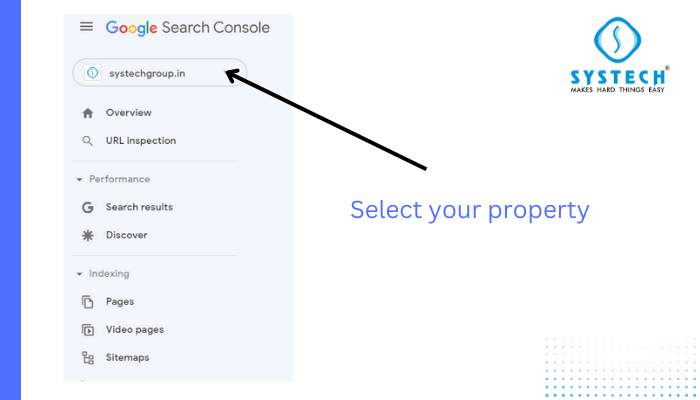
Step 1: Select Your Property on Google Search Console
The first step is to log in to your Google Search Console account. Once inside:
Select the website property you want to manage.
Make sure it’s the correct property to avoid accidentally affecting another site.
Selecting the correct property ensures that all actions you take apply to the right website. This step is crucial, especially if you manage multiple properties in GSC.
Step 2: Access Your Links
After selecting your property:
Navigate to the Links section in the left-hand menu.
This section shows all backlinks pointing to your website, including top linking sites and most linked pages.
The Links report is a central hub to understand your backlink profile. It helps you identify which domains or pages are linking to your site the most.
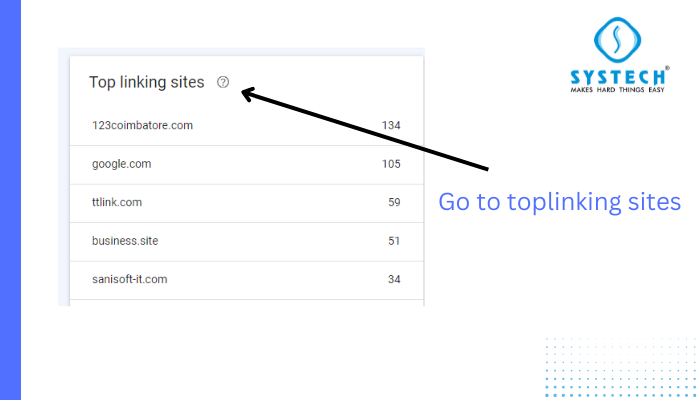
Step 3: Identify Top Linking Sites
Within the Links section:
Scroll to Top Linking Sites.
Review the list carefully to find links that might be harmful or irrelevant.
Pay attention to:
Links from sites with low domain authority.
Links from websites unrelated to your niche.
Excessive links from spammy or questionable domains.
This step helps you create a targeted list of backlinks to disavow, avoiding accidental removal of high-quality links.
Step 4: Prepare Your Disavow File
Once you’ve identified backlinks to remove:
Open a text editor like Notepad.
List the URLs or domains line by line. Use the following format:
http://spamwebsite.com/bad-link
domain:spamdomain.com
Tips for creating the file:
Use the domain:example.com format for repeated spam links across multiple pages.
Keep the file simple and clear — Google only accepts .txt files.
Include comments using # to describe reasons for disavowal (optional but recommended).
Step 5: Upload Your Disavow File
After preparing your disavow file:
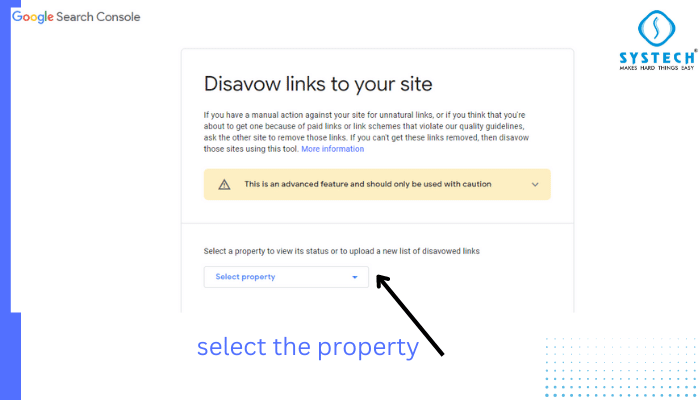
Return to the Disavow Links Tool in GSC.
Select the website property.
Click Upload and choose your .txt file.
Confirm the upload.
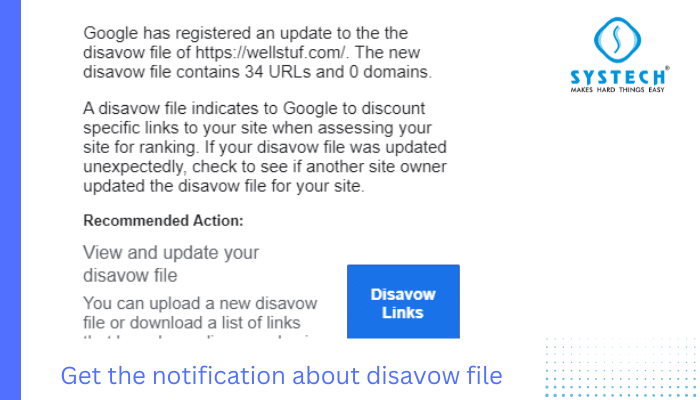
⚠️ Important: Google may take several weeks to process your disavow file. Be patient and avoid uploading multiple files unnecessarily.
Step 6: Monitor Your Backlink Profile
Disavowing links is not a one-time task. Regular monitoring is essential:
Check the Links section in GSC frequently.
Use tools like Ahrefs, SEMrush, or Moz to track new backlinks.
Remove or disavow harmful links as they appear to protect your SEO performance.
Best Practices for Disavowing Backlinks
To ensure your backlink disavow process is effective and safe:
Disavow only harmful links — don’t remove good-quality backlinks.
Prefer domain-level disavows for repeated spam links.
Keep a backup of your disavow file for future audits.
Combine disavowing with manual outreach to webmasters when possible.
Review your backlink profile quarterly to stay proactive.
Common Mistakes to Avoid
Avoid these errors to prevent SEO damage:
Uploading a misformatted file — use plain text .txt only.
Disavowing good links accidentally — audit carefully.
Skipping the manual removal step — try to remove links before disavowing.
Neglecting follow-up monitoring — new spam links can appear at any time
Conclusion
Disavowing backlinks is a vital step to protect your website’s SEO health. By auditing your backlink profile and using Google Search Console’s Disavow Tool carefully, you can prevent penalties and maintain your site’s authority. Always try manual removal first, double-check your disavow file, and monitor new backlinks regularly. A proactive approach ensures your site stays clean, trustworthy, and continues to rank well in search results.