
By Leo Antony Raj, Senior Trainer, Systech Group 20+ years in networking and cybersecurity · Updated November 2026.
6 Min read
In short
Connect two independent ISP services to a router or firewall that supports multiple WAN interfaces.
Configure each WAN connection using the method supplied by the ISP, such as DHCP, static IP or PPPoE.
Use policy-based routing to assign selected source IP addresses or subnets to WAN1 or WAN2.
Use weighted load balancing when you want the router to distribute new sessions according to each connection’s capacity.
Configure link-health checks so the router can detect an unusable WAN and apply the intended failover behaviour.
Test each device’s public IP address and routing path to confirm that the correct ISP is being used.
Standard dual-WAN load balancing distributes sessions; it does not automatically combine two ISP speeds into one faster connection.
Table of Contents
An office network may have two internet connections but still experience slowdowns or downtime when one ISP becomes unstable. A single WAN connection creates a dependency on one provider, while a second connection can provide another path to the internet. With a compatible multi-WAN router or firewall, both links can be used according to a planned traffic policy.
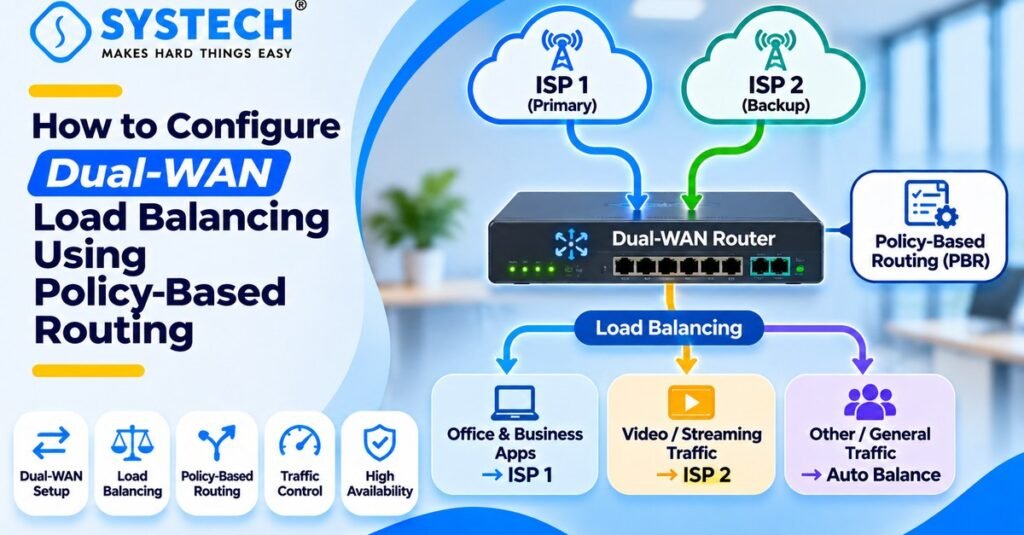
Dual-WAN load balancing distributes network sessions across two internet connections. Policy-based routing (PBR) adds more control by directing traffic according to conditions such as the source IP address, destination IP, protocol or port. For example, devices in one local IP range can use WAN1, while another range uses WAN2.
This guide explains the network design, ISP connection options, source-IP rules, WAN weights, health checks, failover and practical testing. It uses an example with Airtel Fiber on WAN1 and Jio Fiber on WAN2. Router menus and features vary by manufacturer, so treat the configuration steps as a planning guide and use the exact manual for your hardware and firmware.
What Is Dual-WAN Load Balancing?
Dual-WAN Load Balancing is a networking method that allows a router or firewall to use two separate internet connections. Each connection is attached to a WAN interface, usually labelled WAN1 and WAN2. The router decides how outbound sessions should use those links based on its load-balancing algorithm and any routing policies configured by the administrator. Understanding WAN interfaces, IP addressing and routing is an important part of CCNA enterprise networking training in Trichy for router and WAN configuration
A typical setup might use a primary fiber connection and a second broadband or 4G/5G connection. Both can carry traffic during normal operation, or one can be reserved mainly for backup, depending on the chosen design.
Why use two internet connections?
Improve internet availability when one ISP has an outage.
Distribute network sessions across available links instead of relying on one connection.
Assign selected devices, departments or services to a preferred ISP.
Use a higher-capacity link for bandwidth-heavy activity and another link for selected traffic.
Create a planned failover path when a WAN connection becomes unavailable.
Does dual-WAN double your internet speed?
Not by itself. Standard dual-WAN load balancing generally assigns separate sessions to different WAN links. A single download, video call or other individual session usually stays on one WAN to maintain a consistent source IP address and session path. Two 100 Mbps connections do not automatically become one 200 Mbps connection for a single download. True bandwidth bonding requires additional technology, often involving a bonding service or tunnel at both ends.
How Dual-WAN Load Balancing Works
A dual-WAN router sits between the ISP connections and the local network. It receives traffic from computers, phones, servers and other devices, checks the applicable routing rules and sends each session through the selected WAN interface.
Example network scenario
In this example, the administrator wants devices in one LAN range to use Airtel and devices in another range to use Jio. The administrator may also configure a 75:25 weighted distribution for traffic that is not matched by a specific policy. The exact result depends on the router’s algorithm and how it applies weights to sessions.
Basic network flow
ISP 1 (Airtel Fiber) connects to WAN1.
ISP 2 (Jio Fiber) connects to WAN2.
The dual-WAN router applies routing policies and session distribution.
The router connects to the LAN switch or wireless access point.
Client devices receive their IP addresses and use the WAN selected by the routing rules.
The topology image on page 5 of the supplied brief illustrates this arrangement: two ISP links enter a dual-WAN router, which connects to a LAN switch and multiple client devices.
Common Dual-WAN Load-Balancing Methods
Policy-based routing (PBR) selects a WAN based on source/destination IP, protocol, port or other supported match criteria. It is useful for directing a department or device range through a specific ISP. Learners interested in advanced routing policies can explore CCNP routing and enterprise network configuration training in Trichy
Load Balancing vs Failover vs Bandwidth Bonding
These terms describe different behaviours. A network can use load balancing and failover together, but enabling two WAN ports does not guarantee that both functions are configured. True bonding is a separate capability.
Network Topology and Prerequisites
Hardware and information to prepare
A dual-WAN router or firewall with enough WAN interfaces and support for PBR is required for this setup. You also need two active ISP connections and the account details required by each provider. Understanding network devices, router interfaces and connectivity fundamentals is useful when pursuing practical hardware and networking training in Trichy
Plan the LAN address ranges
Use clearly separated LAN subnets or reserved DHCP ranges so that source-IP policies can identify devices reliably. For example, the office team could use 192.168.10.0/24 and guest or lab devices could use 192.168.20.0/24. These are example private ranges; check that they do not overlap with the ISP routers’ LAN networks or any VPN-connected networks.
Use DHCP reservations or static addressing according to your network plan. If a device’s IP address changes, a source-IP routing rule may no longer match the intended device.
Connect Two ISP Routers to a Dual-WAN Router
The supplied video brief describes two ways to connect ISP equipment to the load balancer. The correct choice depends on the ISP device, the router capabilities and whether the ISP permits bridge mode.
Option A: Keep the existing ISP routers in router mode
Leave each ISP router in its existing supported router configuration.
Connect the LAN port of ISP router 1 to WAN1 on the dual-WAN router.
Connect the LAN port of ISP router 2 to WAN2 on the dual-WAN router.
Configure WAN1 and WAN2 to obtain addresses from the respective ISP routers, commonly using DHCP, unless the ISP provides another method.
Check that the LAN subnet of each ISP router does not conflict with the dual-WAN router’s LAN subnet or with the other WAN-side network.
This option is often simpler when the ISP router must remain responsible for its own connection or when bridge mode is unavailable. It can create double NAT because both the ISP router and the dual-WAN router perform routing. Double NAT may affect inbound services, some VPNs, gaming and port forwarding.
Option B: Put the ISP equipment into bridge mode
Confirm with the ISP and device documentation that bridge mode is supported and permitted.
Configure the ISP device to bridge the connection, following the provider’s instructions.
Connect the bridged modem or ONT handoff to the matching WAN interface on the dual-WAN router.
Enter the required WAN settings on the dual-WAN router, such as PPPoE credentials, VLAN ID or static IP details, only when supplied by the ISP.
Verify that the dual-WAN router receives the expected WAN address and can reach the internet.
Bridge mode can allow the dual-WAN router to manage the ISP connection directly and may avoid double NAT. However, not all ISP devices or services support the same bridge configuration. Do not change ONT or ISP equipment settings without the provider’s instructions.
Which option should you choose?
Configure WAN1 and WAN2
The interface names and menu locations differ between manufacturers. Use the following sequence as a vendor-neutral checklist, then follow the exact guide for your router model.
Sign in to the dual-WAN router’s administration interface.
Confirm that the required physical ports are assigned as WAN1 and WAN2. Some routers require a port-mode change or reboot.
Open the WAN or Internet connection settings for WAN1.
Select the connection type supplied by ISP 1, such as Dynamic IP/DHCP, Static IP or PPPoE, and enter only the provider-issued details.
Save the settings and confirm that WAN1 receives an address, gateway and DNS information as expected.
Repeat the process for WAN2 using ISP 2’s connection details.
Check the router’s status page to confirm that both WAN links are connected and can reach the internet.
Do not assume that a WAN link is healthy just because the Ethernet port shows link. A router may have a physical connection to the modem but still be unable to reach the ISP gateway or the wider internet.
Configure Policy-Based Routing Using Source IP
Policy-based routing lets an administrator direct traffic according to defined conditions rather than relying only on the router’s default route. A common rule matches the source IP address or subnet of a client and selects the WAN interface through which its traffic should leave. These routing and traffic-management concepts are covered in advanced CCNP networking classes in Trichy for policy-based routing.
Example policy plan
General PBR configuration steps
Open the router’s Policy Routing, Policy-Based Routing or Load Balance > Policy Routing page.
Create a new rule and give it a clear description, such as Office-to-WAN1.
Choose the LAN or ingress interface if the router asks for one.
Enter the source IP address or subnet that should match the rule.
Leave destination IP, protocol and port unrestricted only if the intention is to route all traffic from that source range. Otherwise, specify the required destination or service.
Select WAN1 as the outgoing interface for the first rule.
Save and enable the rule.
Create a second rule for the other source range and select WAN2.
Review rule order and priority. Many routers evaluate policy rules from top to bottom and apply the first matching rule.
Check the policy status page or routing table to confirm that the rules are active.
TP-Link’s policy-routing documentation describes matching traffic by source IP, destination IP, protocol, source port, destination port and effective time. It also notes that rules may be evaluated in list order. The exact fields and behaviour depend on the router model and firmware.
Why rule order matters
If a broad rule appears above a more specific rule, it may match the traffic first and prevent the later rule from being used. Place specific rules before general rules when the router’s documentation specifies first-match processing. Always check the vendor’s rule-evaluation behaviour.
Assign IP Ranges and Devices to Each ISP
The source-IP method works only when devices receive the addresses expected by the routing policies. A DHCP reservation can help keep a device’s address consistent without manually configuring every client.
Create or confirm the LAN subnet for each group.
Reserve the intended addresses in the router’s DHCP server, or configure static addresses using the organisation’s IP plan.
Check that the default gateway given to each client is the dual-WAN router’s LAN address.
Match each address or subnet to the intended PBR rule.
Reconnect the client or renew its DHCP lease if its address has changed.
Check the client IP configuration before testing its WAN path.
Example
A desktop receives 192.168.10.25 and belongs to the office subnet. The policy rule for 192.168.10.0/24 directs its sessions through WAN1. A test laptop receives 192.168.20.25 and belongs to the lab subnet. The policy rule for 192.168.20.0/24 directs its sessions through WAN2.
If both devices receive addresses from the same broad subnet and the router has no device-specific rule, the router may not distinguish them in the intended way. Use clear address planning or supported device-based matching.
Set WAN Weights Based on ISP Capacity
Weighted load balancing assigns a relative share of new sessions to each WAN link. A higher weight generally means that the router will select that link more often. It does not promise an exact percentage of bytes or guarantee that every application will use the links in the same ratio.
Using the example in the brief, WAN1 provides 300 Mbps and WAN2 provides 100 Mbps. A 75:25 weight is a reasonable starting example because the first line has three times the nominal capacity. Actual traffic distribution depends on the router’s algorithm, active sessions and policy rules.
Cisco’s configuration example uses weighted dual-WAN settings and policy routing to direct selected services through a chosen WAN. Fortinet also documents several load-sharing methods, including source-IP, weighted round robin and source-destination approaches. These examples show that algorithms and behaviour are platform-specific.
Should you always use a 75:25 ratio?
No. Treat the ratio as an initial design choice, not a fixed rule. Measure real-world throughput, latency, packet loss and peak usage. If one connection has higher latency or a restrictive data cap, a lower weight may be appropriate even if its advertised speed is high. Also remember that explicit PBR rules may override or take precedence over general weighted distribution.
Configure Health Checks and Failover
A WAN interface can appear connected while the ISP service beyond the modem is unavailable. Health checks help the router determine whether a link can reach a reliable external destination. Depending on the platform, the router may use ping probes, DNS checks or another monitoring method.
Enable the router’s WAN health-check, link-monitor or gateway-detection feature for each ISP link.
Choose reliable probe targets supported by the router and appropriate for your environment.
Set probe intervals and failure thresholds according to the vendor’s recommendations.
Define what should happen when WAN1 becomes unhealthy: redistribute sessions, use WAN2, or follow a configured priority/failover policy.
Confirm that firewall and NAT policies allow traffic to leave through either WAN when failover is expected.
Test recovery behaviour when the failed link becomes healthy again.
A failed WAN may cause existing sessions to disconnect because their public source IP address changes when traffic moves to another ISP. New sessions can use the surviving connection, but applications may need to reconnect. Do not promise seamless continuity unless the router and application architecture explicitly support it.
Not sure which route fits you?
Tell us your stream and what you are hoping for, and we will tell you honestly which option suits.
Get course detailsTest Routing Decisions for Each Device
Testing confirms whether the router applies the rules as intended. Do not rely only on the WAN status page. Test from clients that belong to each source-IP range.
Per-device routing test
Connect a test device to the LAN and confirm its assigned IP address.
Open a trusted public-IP checking service or use an approved network diagnostic method.
Record the public IP address and ISP shown for the device.
Repeat the test from a device assigned to the other source-IP range.
Confirm that the first device exits through WAN1 and the second through WAN2, as defined by the policy rules.
Check the router’s session, policy-routing or traffic logs if the result does not match the expected WAN.
Test a new connection after changing a rule; existing sessions may remain pinned to their original WAN.
Failover test
Record the normal WAN1 and WAN2 status.
Use the router’s supported test method or a controlled maintenance window to make one WAN unavailable.
Confirm that the health monitor detects the failure.
Check whether new sessions use the remaining WAN according to the configured policy.
Restore the link and confirm that the router returns to its intended normal state.
Document any sessions or services that did not recover automatically.
The source video in your brief demonstrates a similar validation method: assign different IP ranges to client devices and confirm that each device reaches the internet through its designated ISP.
Troubleshooting Common Dual-WAN Problems
Check NAT and firewall policies
For outbound internet access, each WAN may need the appropriate NAT or masquerading policy. In firewall-based products, security policies may also need to permit LAN-to-WAN1 and LAN-to-WAN2 traffic. A routing rule can select an interface, but it does not automatically guarantee that firewall and NAT rules permit the traffic. Learn more about these security controls through firewall configuration training in Trichy for network traffic and access control
Watch for asymmetric routing
Asymmetric routing occurs when traffic leaves through one path but the return traffic follows another. Stateful firewalls, VPNs and applications that expect a stable public IP can be affected. Use platform-supported session persistence and policy design, and avoid splitting a single application flow across WAN paths unless the product specifically supports it.
Dual-WAN Router Examples
A device cannot access the internet after a PBR change because of an incorrect gateway, NAT/firewall rule or WAN selection. Check the default route, NAT policy, security policy and router logs. Understanding wireless connectivity and network troubleshooting can also strengthen these skills through CWNA wireless networking training in Trichy with practical troubleshooting
These are examples from the supplied research brief, not a product ranking or a claim that every model supports every feature in the same way.
Frequently asked questions
What is Dual-WAN Load Balancing?
It is a networking method that uses two internet connections and distributes network sessions across them through a compatible router or firewall. It can improve bandwidth utilisation and availability when configured correctly.
Does dual-WAN load balancing combine two internet speeds?
Usually not. Standard load balancing assigns separate sessions to different WAN links. A single session generally uses one WAN. Combining links for one logical connection requires a separate bandwidth-bonding solution.
What is policy-based routing in a dual-WAN router?
Policy-based routing selects a WAN path according to conditions such as source IP, destination IP, protocol or port. For example, an office subnet can use WAN1 while a guest subnet uses WAN2.
Can I assign one computer to WAN1 and another to WAN2?
Yes, if the router supports source-IP or device-based policy routing. Give each device a stable address using DHCP reservations or an appropriate static IP plan, then create matching rules.
What happens if WAN1 fails?
If health checks and failover are configured, the router can direct new traffic through WAN2. Existing sessions may disconnect because the public IP address changes, and applications may need to reconnect.
Can I connect two ISP routers to one dual-WAN router?
Yes, in many setups you can connect each ISP router’s LAN port to a separate WAN port on the dual-WAN router. Check subnet conflicts and be aware that this can create double NAT.
Should I use bridge mode on my ISP router?
Bridge mode may allow the dual-WAN router to manage the ISP connection directly, but it depends on ISP support and connection requirements such as PPPoE or VLAN settings. Follow the provider’s instructions.
What is the difference between load balancing and failover?
Load balancing uses both WAN links to distribute traffic during normal operation. Failover moves traffic to another link when the preferred connection becomes unavailable. A network can be configured to use both.
Why does my device still use WAN1 after I created a WAN2 policy?
The source IP may not match the rule, the rule may be disabled or placed below a broader rule, or an existing session may still be using its previous path. Check the client’s IP, rule order and session table.
How do I confirm which ISP a device is using?
Check the device’s public IP address using a trusted public-IP lookup service and compare the result with the ISP connections. Also review the router’s policy status, session table or traffic logs.
Learn Networking and Routing with SYSTECH
Dual-WAN configuration brings together IP addressing, routing tables, NAT, firewall rules, WAN health monitoring and troubleshooting. Understanding these fundamentals helps network professionals design reliable internet connectivity for homes, offices and business environments.
Explore relevant SYSTECH networking and cybersecurity training:
Networking and Cyber Security Training in Trichy
Ethical Hacking Course in Trichy
Review the programme details to understand the networking concepts, practical learning and available training options. Choose a course based on your current skill level and career direction.
Final Thoughts
Dual-WAN Load Balancing helps organisations use two internet connections more effectively by distributing sessions across available WAN links. Policy-based routing adds control by allowing administrators to assign specific devices, subnets or services to a preferred ISP.
A reliable deployment starts with a clear IP addressing plan, correct WAN connection settings and properly ordered routing rules. Weighted distribution can account for different ISP capacities, while health checks and failover policies help maintain connectivity when a link becomes unavailable.
Always verify the routing path from each client device, test failover in a controlled way and review NAT, firewall and VPN behaviour. Most importantly, remember that standard dual-WAN load balancing is not the same as true bandwidth bonding.

Written by
Leo Antony Raj
Senior Trainer · Networking, Cyber Security and Cloud
Leo Antony Raj has over 20 years of hands-on experience in hardware, networking, server configuration, ethical hacking and cloud computing. He has trained more than 10,000 students, and he teaches networking first, because every security and cloud role is built on it.