By Arjun Kumar, Senior Trainer, Systech Group 15+ years in Network Security and Cloud Architecture · Updated November 2026.
9 min read
In short
A thin client can configure a router in two ways. First, as a management terminal: connect a console cable (through a USB-to-serial adapter if needed), install the driver, find the COM port in Device Manager, then open PuTTY or HyperTerminal at 9600 baud and type router commands. Second, as the router itself, by installing a router operating system such as OpenWrt, pfSense or OPNsense on an x86 thin client. The first method suits students and CCNA practice. The second suits home labs.
Table of Contents
Introduction
A thin client is a small, quiet, low-power computer. Most people know it as the box that sits behind a bank counter or a call-centre desk. Networking students and lab administrators have found a second use for it: a cheap terminal that stays plugged into a router or switch all day, ready for configuration work.
If you are learning router configuration, you do not need a gaming laptop or a full desktop for this. You need a computer with a USB port, a serial terminal program and the right cable. This guide shows how to set that up with a thin client, step by step, and what to do when something does not work. If you are preparing for a networking career, a structured CCNA course in Coimbatore gives you real routers to practise on after you finish the basics here.
Why Do Students and Admins Need a Small, Cheap Lab PC?
Router configuration is a hands-on skill. You cannot learn it by reading alone, and you need a computer connected to the device to type commands. That causes three practical problems.
- Laptops are shared and busy: A lab laptop that is also used for study, assignments and browsing is often not free when you want to practise.
- Modern laptops rarely have a serial port: The console port on a router expects a serial connection, so you need an adapter anyway.
- A permanent lab needs an always-on terminal: If a server rack or lab bench is running all day, a full desktop wastes electricity and makes noise.
A thin client solves these problems because it is small, uses little power, and can sit next to the device it manages.
What Is a Thin Client PC?
A thin client is a compact computer designed to connect to servers or other devices instead of doing heavy work itself. It usually has a low-power processor, a small amount of storage, a few USB ports and a network port. Many models have no fan. Some run a locked-down Linux system, and others run a Windows edition built for embedded devices.
For router work, the operating system matters. A Windows-based thin client lets you install drivers and terminal software easily. A locked-down Linux thin client may not allow installations, so check this before you buy or borrow one.
What Is a Thin Client PC?
Why Use a Thin Client for Router Configuration?
Small size and low power use
A thin client takes very little desk space, so you can place it on the same shelf as your router and switch. Its low power draw means you can leave it on for long lab sessions without worrying about the electricity bill.
Quiet and always on
Fanless models make no noise. That matters in a classroom, a home study room or a small office where the networking gear is already noisy.
Good for networking labs and CCNA practice
CCNA practice means repeating the same tasks many times: setting hostnames, assigning IP addresses, configuring VLANs, saving configurations. A dedicated terminal that is always connected removes the setup time, so you spend your hour typing commands instead of finding cables.
What You Need Before You Start
- A thin client with a free USB port and an operating system that lets you install software (Windows is the easiest)
- A console cable Many Cisco routers use an RJ45 console port, so the cable has an RJ45 end for the router. Newer devices may have a USB console port instead
- A USB-to-serial adapter, if your cable ends in a serial (DB9) connector. Thin clients and modern laptops often have no serial port, so the adapter provides one through USB
- A router or switch powered on and within cable reach
- Terminal software: PuTTY or HyperTerminal
If you are building a full practice bench with routers, switches and cabling, a hardware and networking course in Chennai covers the physical side of this setup in a guided way.
Three Ways to Connect a Thin Client to a Router
Console cable (CLI)
The console port is a dedicated management port. It works even when the router has no IP address, no configuration and no network. That is why it is the standard method for a new router and for CCNA labs. You get a command line interface (CLI) and type commands directly.
Ethernet and web page (GUI)
If the router already has an IP address and a web interface, plug the thin client into a LAN port with an Ethernet cable and open the router’s address in a browser. This gives you a graphical dashboard. It is easier for home routers, but you cannot use it on a router that has never been configured, and it does not teach you the command line.
Static IP vs DHCP and the same-subnet rule
For the Ethernet method, the thin client and the router must be in the same subnet, or they cannot talk to each other. You have two options:
DHCP: the router hands the thin client an address automatically. This is the simplest choice.
Static IP: you type an address yourself. For example, if the router is 192.168.1.1 with a 255.255.255.0 mask, you could give the thin client 192.168.1.50 with the same mask and use 192.168.1.1 as the gateway.
Step-by-Step: Configure a Router From a Thin Client
Step 1: Connect the console cable and USB adapter
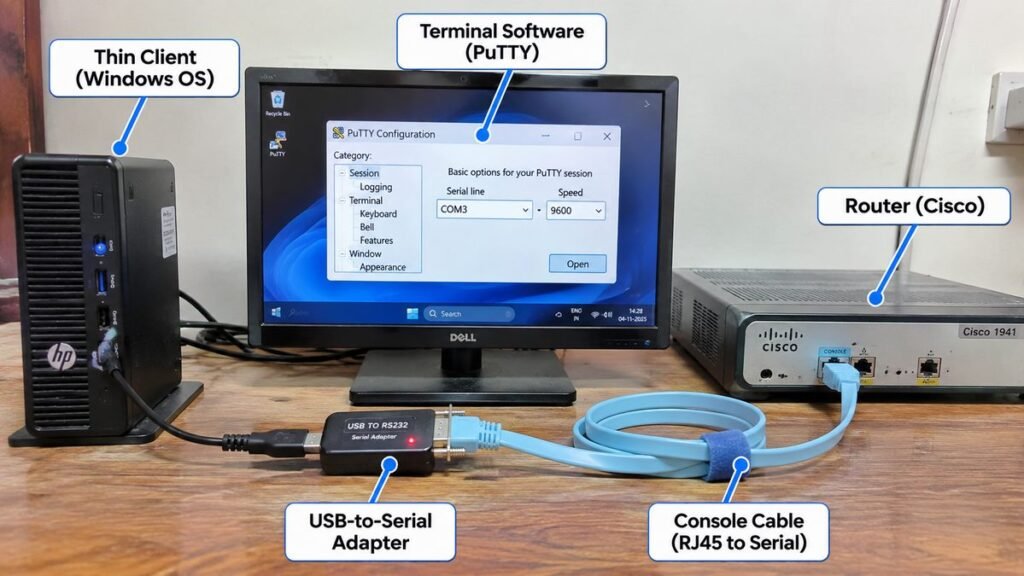
Plug the RJ45 end of the console cable into the port marked Console on the router (not into a LAN port). Plug the other end into the USB-to-serial adapter, then plug the adapter into a USB port on the thin client.
Step 2: Install the drivers
Most USB-to-serial adapters need a driver, and the correct one depends on the chip inside the adapter. Check the adapter’s packaging or the manufacturer’s page. Windows may install the driver automatically if the thin client has internet access.
If installed software disappears after a restart, the thin client probably has a write filter turned on. This feature protects the system by discarding changes at every reboot. Ask the person who manages the device, or turn the filter off before you install the driver and the terminal software.
Step 3: Find the COM port in Device Manager
Open Device Manager and expand Ports (COM & LPT). You should see an entry such as “USB Serial Port (COM3)”. Note the COM number. It can change if you use a different USB port.
Step 4: Open HyperTerminal or PuTTY and set the serial settings
In PuTTY, choose the Serial connection type, type your COM port (for example COM3) and set the speed. Cisco’s documentation lists these standard console settings:
Step 5: Open the router console and run first commands
Click Open, then press Enter once or twice. You should see a prompt such as Router>. If the screen stays blank, press Enter again and check the cable and COM number. Then try these starter commands:
Router> enable
Router# configure terminal
Router(config)# hostname LAB-R1
LAB-R1(config)# interface gigabitethernet 0/0
LAB-R1(config-if)# ip address 192.168.1.1 255.255.255.0
LAB-R1(config-if)# no shutdown
LAB-R1(config-if)# exit
LAB-R1(config)# end
LAB-R1# show ip interface brief
LAB-R1# copy running-config startup-config
The last command saves your work. Without it, the router forgets the configuration after a restart. Interface names differ by model, so use show ip interface brief to see the names on your device.
Terminal Software: HyperTerminal vs PuTTY
If a tutorial tells you to open HyperTerminal and you cannot find it, use PuTTY. The serial settings are identical. PuTTY has the extra benefit that when your router later has an IP address, you can use the same program for SSH.
Advanced: Use a Thin Client as the Router
The second use is more ambitious. Some x86-based thin clients can run a router operating system and replace a home router. This is popular in home labs because the hardware is small, quiet and uses little power.
- OpenWrt is a lightweight Linux-based router system that suits devices with small storage.
- pfSense and OPNsense are firewall and router platforms with a web interface. They are heavier and prefer a device with two network ports.
Minimum hardware requirements change with each version, so check the official documentation of the system you choose before you install it. You should also know the main limit: most thin clients have only one Ethernet port. A router needs one port for the internet side (WAN) and one for the local network (LAN). There are two common ways around this.
- Add a second network interface, for example a USB Ethernet adapter, or a network card if the thin client has an expansion slot.
- Use a router on a stick design. One port carries several VLANs, and the router handles traffic between them. This needs a managed switch that supports VLAN trunking.
Not sure which route fits you?
Tell us your stream and what you are hoping for, and we will tell you honestly which option suits.
Get course detailsManaging Many Routers From a Browser
In larger networks, administrators do not walk to each router with a console cable. They manage devices remotely using SSH, web dashboards, or automation interfaces such as NETCONF and RESTCONF, where the device supports them. In that setup the thin client only runs a web browser or an SSH client and the management work happens on a server. The console cable is still the fallback when a device is unreachable over the network, so the skill you practise here stays useful.
Learn Networking at Systech
A thin client lets you practise commands, but real learning also needs guided labs, a syllabus and an exam plan. Systech’s CCNA course page lists more than 65 hours of coverage, classroom and live online batches, weekday and weekend timings, and a batch size of 8 to 10 students. Topics include IP addressing and subnetting, VLANs, routing with RIP, EIGRP and OSPF, ACLs, NAT, and network security basics. The course also includes a real-time router rack setup, so you work on physical routers and not only on a single practice terminal.
If you are in Tiruchirappalli, you can look at the CCNA course in Trichy for the syllabus and batch details. The page states that Systech runs a Pearson VUE test centre for the Cisco CCNA 200-301 exam, so you can plan both training and exam in one place. Confirm current fees and batch dates directly with the branch before you decide.
Common Problems and Fixes
Frequently asked questions
Can I use a thin client with a locked-down operating system for router console access?
Only if it lets you run a terminal program and recognise a USB serial adapter. Many Linux-based thin clients restrict installations, and some Windows models use a write filter that undoes changes after reboot. Test with your adapter and a terminal program before relying on the device for a lab.
Which console cable do I need for a Cisco router if my thin client only has USB ports?
Use the cable that matches the router’s console port, and add a USB-to-serial adapter if the cable ends in a serial connector. Routers with an RJ45 console port use a console cable with an RJ45 end. Routers with a USB console port can connect to the thin client with a USB cable, though the driver requirements depend on the device and Windows version.
Do I need HyperTerminal on Windows 10 or 11, or can I use PuTTY instead?
Use PuTTY. Newer Windows versions do not include HyperTerminal, and PuTTY supports the same serial connection with the same settings. It also handles SSH, which you will need later.
What baud rate should I use if I see garbled characters on the router console?
Start with 9600, 8 data bits, no parity, 1 stop bit and no flow control. If the output is still unreadable, the router may have a different console speed saved in its configuration, so try other common speeds such as 115200 and 19200.
Can a beginner with no networking background practise CCNA labs on a thin client?
Yes. The thin client is only the keyboard and screen for the router, so the learning curve comes from the commands, not the computer. Begin with simple tasks such as naming the device and assigning an IP address, then move to VLANs and routing as you gain confidence.
Will a thin client with one Ethernet port work as a home router?
Not on its own, because a router needs separate WAN and LAN connections. You can add a USB Ethernet adapter or a network card, or use a router-on-a-stick design with a VLAN-capable managed switch.
Is a thin client better than a laptop for a permanent networking lab?
For a fixed lab bench, usually yes. It is smaller, quieter and cheaper to run, and it can stay connected to the router all the time. A laptop is better when you need portability or a machine with full software freedom.
Can I configure a router from a thin client without a console cable?
Yes, if the router already has an IP address and a management interface. Connect by Ethernet and open the router’s web page, or use SSH. A brand-new router usually has no such setup, so the console cable is the dependable first step.
Can working professionals learn router configuration through weekend classes in Coimbatore?
Systech’s CCNA course page for Coimbatore lists weekday and weekend batches in classroom and live online modes. Ask the branch for the current weekend schedule and syllabus before you enrol.
Does practising on one thin client replace hands-on training with real routers before the CCNA exam?
No. A single console terminal builds command-line habits, but the CCNA 200-301 exam also covers topics such as routing, switching, wireless, security and automation across several devices. Practise on a lab with multiple routers and switches as well.
Final Thoughts
A thin client is a practical, low-cost way to build a quiet networking lab. Use it as a console terminal first: connect the cable, install the driver, find the COM port, open PuTTY at 9600 and type your first commands. Once that feels natural, try the advanced projects such as running OpenWrt or pfSense. When you are ready for guided labs, a full syllabus and an exam plan, talk to your nearest Systech branch about CCNA training.