
By Leo Antony Raj, Senior Trainer, Systech Group 20+ years in networking and cybersecurity · Updated November 2026.
6 Min read
In short
If your Trichy office has 300 Mbps internet but your Coimbatore computer gets only 1.1 Mbps through RDP, the problem may be caused by a slow NLD link, network congestion, packet loss, high latency or router settings. Check the WAN bandwidth, test the connection between both branches and compare normal file-transfer speed with RDP performance. Once you find the actual cause, you can fix the problem without making unnecessary changes to the internet connection.
Table of Contents
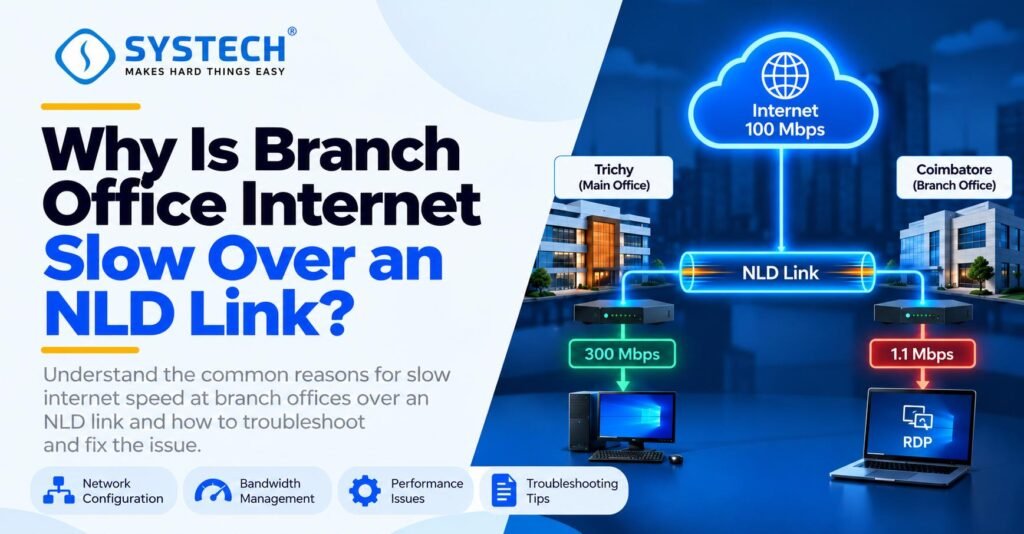
A company has two branches: one in Trichy and another in Coimbatore. The Trichy office has a 300 Mbps internet connection, and employees at the Coimbatore branch access systems in Trichy using Remote Desktop Protocol (RDP). However, the Coimbatore computer appears to receive only 1.1 Mbps of usable speed.
There is no intentional bandwidth restriction, and the internet connection in Trichy works normally. So, why is there such a big difference in speed between the two branches?
The problem may be related to the National Long Distance (NLD) link, WAN bandwidth, network congestion, packet loss, latency, router configuration or RDP performance. The administrator must test the network to identify the actual cause before making changes.
Understanding routing, switching and WAN connectivity is important when troubleshooting branch-office network problems. Students interested in developing these practical networking skills can explore the CCNA training course in Chennai.
What Is an NLD Link, and How Does It Connect Two Branch Offices?
An NLD link is a long-distance telecommunications connection used to carry traffic between different locations. Businesses may use leased circuits, private WAN services or other provider-managed connections to connect their offices.
In this example, Trichy is the main office, and Coimbatore is the remote branch. The company shares internet access from Trichy, while employees in Coimbatore connect to systems hosted in Trichy.
The network may follow this path:
Coimbatore computer → Coimbatore router → NLD/WAN link → Trichy router → Internet or company server
The exact design depends on whether the company uses a leased line, MPLS, a site-to-site VPN or another WAN configuration.
The important point is that a 300 Mbps internet connection in Trichy does not guarantee 300 Mbps of usable throughput in Coimbatore. The complete network path must support the required traffic.
Why Is Internet Speed Only 1.1 Mbps in Coimbatore?
Several technical reasons can explain this difference. The following are possible causes to investigate, not confirmed faults in this particular network.
1. The NLD Link May Have Lower Bandwidth
The first thing to check is the actual capacity of the connection between the two branches.
For example, the Trichy office may have a 300 Mbps internet connection, while the inter-branch WAN link has a much lower capacity. If many employees use the same link, the available bandwidth may decrease further.
Consider this example:
These values are illustrative only. Actual throughput also depends on protocol overhead, traffic direction and network conditions.
How to check and resolve it:
- Verify the contracted NLD or WAN bandwidth with the service provider.
- Check the configured interface speed on both routers.
- Monitor WAN utilization during the slowdown.
- Check whether file transfers, backups or video calls are consuming bandwidth.
- Upgrade the WAN capacity if measured demand regularly exceeds the available bandwidth.
Do not assume that the internet connection and the inter-branch link have the same capacity.
2. Network Congestion May Reduce Available Throughput
Network congestion occurs when more traffic tries to use a connection than it can carry efficiently.
For example, employees in Coimbatore may be using RDP while other systems transfer large files from the Trichy server. If the WAN link is busy, interactive applications can become slow even when the main internet connection has sufficient bandwidth.
Congestion may occur on the branch router, WAN interface, provider network or Trichy gateway.
How to check and resolve it:
- Monitor interface utilization on both branch routers.
- Check traffic graphs during working hours and outside peak hours.
- Identify which devices and applications consume the most bandwidth.
- Configure suitable Quality of Service (QoS) policies to prioritize business-critical RDP traffic where supported.
- Increase available bandwidth if normal business traffic regularly saturates the link.
QoS can prioritize important traffic during congestion, but it cannot create additional physical bandwidth.
3. High Latency May Make RDP Feel Extremely Slow
Latency is the time required for network data to travel between two points and return. It is usually measured in milliseconds (ms).
RDP is an interactive application. Keyboard input, mouse movements and screen updates travel between the client and the remote computer. High latency can make these actions feel delayed.
A file download may continue transferring data while an employee experiences a noticeable delay when opening a menu or typing into a remote application.
How to check and resolve it:
Open Command Prompt on the Coimbatore computer and run:
ping <Trichy-RDP-server-IP> -n 50
Replace the placeholder with the actual IP address of the RDP server.
Review the average response time, maximum response time and percentage of lost packets. Repeat the test during busy and quiet periods.
If latency is consistently high, check the WAN route, router load, provider network and any VPN tunnel between the sites. Share the results with the network provider if the delay appears to occur across its network.
High ping time does not automatically identify the faulty device, so compare tests to multiple network points before deciding where the problem exists.
4. Packet Loss May Interrupt RDP Traffic
Packet loss occurs when network packets fail to reach their destination. It can be caused by overloaded links, faulty cables, interface errors, damaged network equipment or problems within a provider’s network.
Even relatively low packet loss may affect interactive applications. TCP connections may need to retransmit missing data, and remote desktop updates can become delayed or uneven.
How to check and resolve it:
Run the following command from Coimbatore:
ping <Trichy-RDP-server-IP> -n 100
Look for packet loss and unusual changes in response time. Then check router interface counters for CRC errors, dropped packets, discards and other transmission errors.
If the destination does not respond to ping, confirm whether ICMP traffic is blocked before treating the result as proof of a network failure.
If packet loss appears between the branches, test the individual network segments and ask the WAN provider to investigate the link.
Network performance problems can sometimes overlap with security concerns, such as firewall rules, VPN configuration and suspicious network traffic. Learning how to identify these risks is part of a cybersecurity course in Chennai.
5. Router Configuration or WAN Interface Errors May Limit Performance
A router can have a high-speed internet connection and still forward traffic poorly if its configuration or hardware is unsuitable for the workload.
Possible issues include:
- Incorrect WAN interface settings.
- High CPU or memory usage on the router.
- Interface errors or packet drops.
- Incorrect routing or an unexpected traffic path.
- An overloaded VPN or firewall.
- A misconfigured MTU or packet fragmentation problem.
How to check and resolve it:
Review router CPU and memory usage, WAN interface counters, routing tables and configured bandwidth policies. Confirm that the interfaces operate at the expected speed and duplex settings.
Where the path uses a VPN, compare performance through the tunnel with performance on an approved alternative test path. Investigate encryption overhead, MTU settings and fragmentation if the evidence points to them.
Change one setting at a time and retest. Avoid changing MTU or routing settings without first identifying a specific problem.
6. The RDP Session May Be Slow Even When the Network Is Working Correctly
Slow RDP performance does not always mean slow internet speed.
RDP transfers screen updates and user input rather than simply behaving like a normal internet download. Its performance can be affected by the remote computer’s CPU, memory, disk activity, graphics rendering, display resolution, number of monitors and applications running inside the session.
For example, if the Trichy server is running a heavy application or has high CPU utilization, the Coimbatore user may see a delayed screen response even if the WAN link is healthy.
How to check and resolve it:
- Compare RDP performance with a normal download or file transfer over the same network path.
- Monitor CPU, RAM and disk activity on the remote computer.
- Test with a lower display resolution and fewer monitors.
- Close unnecessary applications and background processes.
- Review RDP settings and supported compression or graphics options.
- Compare a single-user session with performance during busy periods.
If a file transfer achieves good throughput but RDP interactions remain slow, investigate remote-system performance, latency and RDP configuration before purchasing additional internet bandwidth.
7. MTU, Fragmentation or VPN Overhead May Reduce Throughput
The Maximum Transmission Unit (MTU) defines the maximum packet size that can be sent over a network interface without fragmentation at that layer.
When packets are too large for part of the path, they may be fragmented or dropped depending on the network configuration. A VPN can introduce additional packet overhead, reducing the usable packet size.
Incorrect MTU settings or blocked Path MTU Discovery messages can cause certain traffic to perform poorly or fail, even when basic connectivity works.
How to check and resolve it:
On Windows, you can perform a basic test with:
ping <Trichy-RDP-server-IP> -f -l 1472
This sends an IPv4 ICMP echo request with a 1,472-byte payload and the Don’t Fragment flag. It is a diagnostic starting point for a standard 1,500-byte IPv4 MTU, not a universal setting.
If the test fails, do not immediately conclude that MTU is the cause. Firewalls may block these packets, and the path may have a smaller MTU.
Use controlled packet-size tests and check the interfaces along the route. Adjust MTU only when testing confirms a mismatch.
8. A Hidden Bandwidth Policy May Still Be Active
Even if the company has not intentionally limited the Coimbatore computer, an existing configuration may restrict its traffic.
Check for:
- QoS policies on routers or switches.
- Per-IP or per-port bandwidth limits.
- Firewall traffic-shaping rules.
- VPN tunnel bandwidth profiles.
- WAN-provider traffic policies.
- Windows policies that affect application performance.
Check the configuration on both ends of the connection and compare the affected computer with another device using the same route.
If a restriction is found, correct or remove it only after confirming that the policy is not required for security or business operations.
Step-by-Step Troubleshooting: How to Find the Real Cause
Instead of changing several network settings at once, follow a controlled troubleshooting process.
Step 1: Confirm the Speed Test
Run a speed test from the Trichy office and a suitable test from the Coimbatore office. Record download speed, upload speed and test conditions. Make sure both tests measure the same network service where possible.
Step 2: Measure Inter-Branch Connectivity
Ping the Trichy server from Coimbatore and run tracert to examine the route. If permitted, use pathping to investigate packet loss across the path.
Step 3: Check WAN Utilization
Review both router interfaces, bandwidth graphs and error counters. Confirm the actual provisioned WAN capacity and whether the link reaches high utilization during the slowdown.
Step 4: Separate Network Speed from RDP Performance
Test a controlled file transfer between approved endpoints and compare it with RDP responsiveness. Check the Trichy computer’s CPU, memory and disk usage.
Step 5: Collect Evidence Before Making Changes
Record test results, timestamps, WAN utilization, packet loss and interface errors. Give this information to the network administrator or service provider to isolate the failing segment.
Useful Windows Commands for Troubleshooting
Run these commands from an authorized computer and use the actual server IP address. Intermediate routers may block diagnostic traffic, so a timeout at one hop does not by itself prove packet loss affecting application traffic.
For advanced testing, use a controlled throughput tool such as iPerf3 between authorized endpoints, if permitted by the company. Test in both directions where possible, and avoid generating heavy traffic on a production network without approval.
When investigating network faults, IT professionals must also understand how to identify unauthorized access and protect systems during troubleshooting. A cybersecurity training course in Chennai can help learners understand network protection, security monitoring and threat prevention.
How to Interpret the Test Results
The following table connects common observations with the next troubleshooting action.
The goal is to find the first network segment where performance becomes abnormal. That gives the administrator a much better starting point than changing settings randomly.
What Should the Network Administrator Check First?
For the specific case of 300 Mbps in Trichy and 1.1 Mbps on the Coimbatore computer, use this order:
- Confirm what the 1.1 Mbps figure measures: A speed-test result, a file-transfer rate and an RDP bandwidth indicator are not necessarily equivalent.
- Verify the NLD link’s actual capacity: Check the contract, interface settings and available throughput.
- Check utilization and packet loss: Inspect both branch routers during the problem.
- Compare network and RDP performance: Determine whether the limitation affects all traffic or only the remote desktop session.
- Escalate with test evidence: Ask the provider to investigate the affected path if measurements point to its network.
The same approach applies to many multi-branch business networks. Understanding routing, switching, WAN links and packet behaviour is essential for identifying these problems accurately.
Not sure which route fits you?
Tell us your stream and what you are hoping for, and we will tell you honestly which option suits.
Get course detailsWhen Should You Contact the NLD Service Provider?
Contact the service provider when the measured link performance does not match the agreed service, when loss or unusual latency appears across the provider-managed path, or when WAN utilization and interface checks suggest a fault outside the company’s own network.
Share the following evidence:
- Link ID and the affected branch locations.
- The time and duration of each slowdown.
- Contracted bandwidth and measured throughput.
- Ping and packet-loss results.
- Router interface utilization and error counters.
- Traceroute or pathping output, where available.
- Results from controlled file transfers and RDP tests.
Ask the provider to confirm the provisioned capacity, check link utilization and errors, review latency and packet-loss measurements, and investigate routing or transmission issues within its network.
The Department of Telecommunications explains that NLD services support the carriage of telecommunications traffic between licensed service areas and can include leased-circuit services. The specific service contract and network design determine the performance expected for your connection.
If the network administrator identifies a security policy, firewall rule or VPN issue instead, the fix may need to be handled by the company’s IT team rather than the NLD provider.
Network Security Considerations During Troubleshooting
Do not disable the firewall, remove access controls or expose the RDP server directly to the public internet simply to test performance.
Remote desktop access should remain restricted to authorized users and approved network paths. If the company uses a VPN, firewall or private WAN, maintain those protections while investigating the problem.
Network administrators should also check for unexpected traffic, unauthorized remote sessions and unusual bandwidth consumption. If the evidence points to suspicious traffic or a security configuration issue, investigate it before changing the network’s security controls.
Conclusion
A 300 Mbps internet connection in Trichy does not guarantee the same speed for a computer in Coimbatore over an NLD link. The difference may be caused by a lower-capacity WAN circuit, congestion, packet loss, high latency, router errors, MTU problems or RDP-specific performance issues.
The right solution is to measure the network path, compare throughput with RDP responsiveness, inspect the WAN interfaces and identify where performance starts to degrade. Once the cause is confirmed, the administrator can apply the correct fix instead of upgrading bandwidth or changing configurations without evidence.
For readers who want to build practical skills in routing, switching and network troubleshooting, the CCNA course in Chennai is a relevant next step.
Frequently asked questions
Why is internet speed slow at a branch office when the main office has fast internet?
The branch may use a lower-capacity WAN link, experience congestion or packet loss, or follow a slower network route. The main office’s internet speed alone does not determine branch-to-main-office performance.
Can an NLD link reduce internet speed between two branches?
Yes. The available capacity, utilization, routing and condition of the inter-branch connection can limit throughput even when the main office has a faster internet plan.
Why is RDP slow even when ping is normal?
Ping measures basic response time and packet loss for ICMP traffic. RDP performance can also depend on available bandwidth, application workload, server resources, display settings and how the network handles interactive traffic.
How can I check packet loss between Trichy and Coimbatore?
Run ping and, where appropriate, pathping from an authorized computer to the remote endpoint. Compare results across multiple tests and check router interface counters to distinguish endpoint behaviour from network-path problems.
Should the company upgrade its 300 Mbps internet connection to fix the problem?
Not necessarily. First confirm whether the internet connection, NLD link, router, remote computer or RDP session is responsible. Upgrade the component that testing shows is limiting performance.
How can I check the actual bandwidth of an NLD link?
Check the bandwidth agreed with your service provider, monitor WAN interface utilization on both routers, and run a controlled throughput test between authorized endpoints.
Can too many users slow down an NLD link?
Yes. When multiple users share the same WAN link for RDP, file transfers, video calls and downloads, congestion can reduce the bandwidth available to each application.
What is the difference between bandwidth and latency in a branch network?
Bandwidth is the amount of data a connection can carry over time, while latency is the time data takes to travel between two points. High bandwidth does not always mean a responsive RDP connection.
How can I identify whether the router or the NLD provider is causing slow internet?
Check router CPU usage, interface errors, WAN utilization, packet loss and latency at different points in the network. If the issue appears within the provider-managed path, share the test results with the NLD service provider.
Does Quality of Service (QoS) help improve RDP performance over an NLD link?
Yes. QoS can prioritize RDP traffic over less important traffic during congestion, but it cannot increase the physical bandwidth of the NLD link or fix packet loss caused by a faulty connection.

Written by
Leo Antony Raj
Senior Trainer · Networking, Cyber Security and Cloud
Leo Antony Raj has over 20 years of hands-on experience in hardware, networking, server configuration, ethical hacking and cloud computing. He has trained more than 10,000 students, and he teaches networking first, because every security and cloud role is built on it.