
By Arjun Kumar, Senior Trainer, Systech Group 15+ years in Network Security and Cloud Architecture · Updated October 2026.
8 min read
In short
To block communication between computers while keeping internet access, configure Windows Firewall rules to restrict traffic between the computers’ IP addresses. Use PowerShell to create inbound and outbound rules, and test both internet connectivity and peer communication. For stronger network-level isolation, use a managed switch with port isolation, as an unmanaged Ethernet switch generally does not support configurable port isolation.
Table of Contents
Introduction
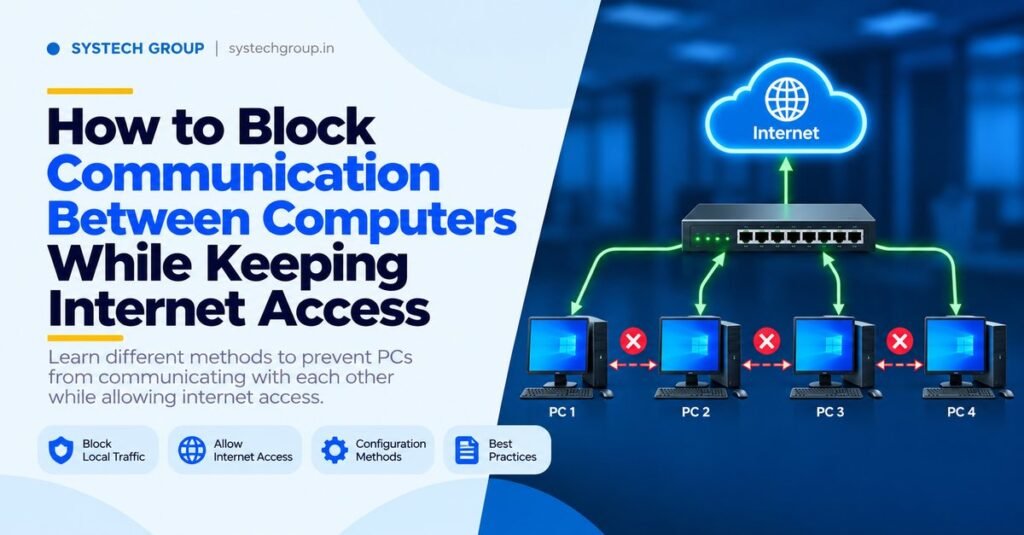
Imagine an office with four computers connected to an unmanaged 8-port Ethernet switch. All four computers need internet access, but they must not communicate with one another, access each other’s shared folders or successfully ping each other’s IP addresses.
This situation can occur in computer labs, training centres, small offices and shared workspaces where each user should have independent network access.
The challenge is that all four computers are connected to the same switch. By default, devices on the same local network can exchange traffic when their network settings and security rules permit it.
So, how can you block communication between computers while keeping internet access?
The answer depends on the level of isolation you need. You can use Windows Firewall rules on each computer to block traffic between selected devices, or you can use a managed switch with port isolation for network-level separation. If you are learning how switching, IP addressing and network security work, the practical concepts covered in a CCNA course in Chennai provide useful background for understanding this type of problem.
Understand the network setup
Before changing any settings, understand how the computers are connected.
Consider this example:
Internet
Router / Gateway
Provides internet access
Unmanaged 8-port switch
Connects all four computers
PC 1
192.168.1.11
PC 2
192.168.1.12
PC 3
192.168.1.13
PC 4
192.168.1.14
Illustrative topology: the IP addresses are examples, not actual device settings.
In this network, the router provides a path to the internet, while the switch forwards local network traffic between connected devices.
An unmanaged switch normally does not provide a user-configurable feature to isolate individual ports. Therefore, simply connecting the computers to different ports will not prevent them from communicating.
The solution must either control traffic on the computers themselves or introduce a network device that supports isolation.
What is the difference between blocking ping and blocking communication?
This is the most important technical distinction in this problem.
Ping is a diagnostic command that uses Internet Control Message Protocol (ICMP) to check whether another device responds over the network. Blocking ICMP echo requests can stop a computer from responding to ping, but it does not automatically block every other type of communication.
For example, a computer might stop responding to ping while still allowing access to shared folders, remote desktop services or other applications.
For this reason, blocking only ping is not enough when the objective is to prevent all communication between the four computers.
Method 1: Use Windows Firewall to block communication between selected computers
Windows Firewall is a built-in security feature that filters network traffic according to rules. It can control incoming and outgoing traffic using details such as IP addresses, protocols and ports.
For a small network with four Windows computers, this is a practical system-side method.
Step 1: Find the IP addresses of all four computers
On each computer, open Command Prompt and run:
ipconfig
Find the active Ethernet adapter and note its IPv4 address.
For this example, assume the computers use these addresses:
Use your actual addresses when applying the rules. The example assumes all four computers are on the same IPv4 subnet.
Step 2: Open PowerShell as administrator
On each Windows computer:
- Open the Start menu.
- Search for PowerShell.
- Right-click Windows PowerShell or Terminal.
- Select Run as administrator.
Administrator permissions are required to create system firewall rules.
Step 3: Create firewall rules to block traffic between the four computers
The following PowerShell commands create inbound and outbound block rules for the example peer IP addresses.
Run the commands on each of the four computers.
$Peers = @(
“192.168.1.11”,
“192.168.1.12”,
“192.168.1.13”,
“192.168.1.14”
)
New-NetFirewallRule `
-DisplayName “Block Peer Computer Inbound” `
-Direction Inbound `
-Action Block `
-RemoteAddress $Peers `
-Profile Any
New-NetFirewallRule `
-DisplayName “Block Peer Computer Outbound” `
-Direction Outbound `
-Action Block `
-RemoteAddress $Peers `
-Profile Any
How these commands work:
- $Peers contains the IP addresses of the four computers.
- -Direction Inbound blocks matching traffic arriving at the computer.
- -Direction Outbound blocks matching traffic leaving the computer.
- -Action Block tells Windows Firewall to block the matching traffic.
- -Profile Any applies the rule across Windows network profiles.
The rule includes the computer’s own example IP address. That entry does not identify another device, so it is harmless; alternatively, remove each computer’s own IP address from its list.
These rules are intended to block IP traffic between the listed peers in both directions. They do not block traffic to unrelated internet destinations merely because those destinations are outside the listed peer addresses.
Important: Use the actual peer addresses and confirm that they remain correct. This example does not provide complete isolation against every possible traffic path, including other interfaces, unlisted IPv6 addresses, alternate addresses or non-IP communication. For stronger enforcement, use centrally managed firewall policies or network-level isolation.
Step 4: Check that the firewall rules exist
Run this command in elevated PowerShell:
Get-NetFirewallRule -DisplayName “Block Peer Computer*”
You should see the inbound and outbound rules you created.
To inspect their address filters, run:
Get-NetFirewallRule -DisplayName “Block Peer Computer*” |
Get-NetFirewallAddressFilter
Review the displayed remote addresses to confirm that the intended peers are covered.
Step 5: Test communication between the computers
From PC 1, open Command Prompt and run:
ping 192.168.1.12
Repeat the test for the other peer addresses.
If the relevant firewall rules are applied correctly, the peer computers should not respond to these pings. However, a ping failure alone does not prove that every communication method is blocked.
Then test internet access:
ping 1.1.1.1
You can also open a browser and visit a website.
If the firewall rules are correct and the network has working internet connectivity, internet access should remain available because the example rules target only the listed peer IP addresses.
Note that a failed internet ping can also occur when the destination or network blocks ICMP. A browser test is a useful additional check.
Method 2: Block ping only using Windows Firewall
Sometimes the actual requirement is simply to prevent computers from pinging one another, while allowing file sharing and other network services to continue.
In that case, you do not need the broader peer-traffic rules described above. Instead, create an inbound ICMP rule for the specific peer IP addresses.
Open PowerShell as administrator and run:
New-NetFirewallRule `
-DisplayName “Block Peer ICMPv4 Echo Requests” `
-Direction Inbound `
-Protocol ICMPv4 `
-IcmpType 8 `
-RemoteAddress “192.168.1.11”,”192.168.1.12″,”192.168.1.13″,”192.168.1.14″ `
-Action Block `
-Profile Any
ICMPv4 type 8 is an echo request, which is the request used by a standard IPv4 ping.
This rule blocks matching incoming echo requests from the listed addresses. It does not block all computer-to-computer communication, and IPv6 ping traffic requires separate consideration.
Microsoft documents how to configure ICMP rules, including protocol types and address scopes, in its Windows Firewall configuration guidance.
Use this method only when blocking ping is the intended requirement not when the goal is full peer isolation.
Method 3: Use a managed switch with port isolation
If the requirement is to prevent the computers from communicating at the network level, a managed switch with a suitable isolation feature is usually a stronger choice.
Some managed switches support port isolation, while other models support private VLANs or similar features. Their availability and configuration depend on the exact switch model.
Cisco’s private VLAN documentation explains that isolated ports can be prevented from communicating with other isolated ports while still communicating with designated promiscuous ports, such as a gateway connection.
A suitable design would look like this:
- Connect the four computers to isolated switch ports.
- Connect the router or designated gateway to a permitted uplink or promiscuous port.
- Configure the isolation feature according to the manufacturer’s instructions.
- Verify that each computer can reach the gateway but cannot communicate directly with the other isolated computers.
This is different from creating separate ordinary VLANs without considering routing. If traffic can be routed between those VLANs, additional access-control rules may be necessary.
Before purchasing or configuring a switch, confirm that its exact model supports the required isolation feature and that the feature works with the intended internet connection.
Which method should you choose?
For four Windows computers on an unmanaged switch, host firewall rules are a reasonable starting point. If the computers must remain isolated even when users can change their own firewall settings, or when enforcement must cover multiple protocols and device types, use a properly configured network-level solution.
Common mistakes to avoid
Blocking only ICMP
Blocking ping does not stop every application from communicating with another computer. Apply broader controls when the actual requirement is isolation.
Blocking the entire local subnet
A broad rule that blocks traffic to or from the local subnet may interfere with legitimate local services. Target the peer addresses where appropriate and test the network after applying changes.
Forgetting IPv6
IPv4 firewall rules do not automatically cover every IPv6 communication path. If IPv6 is enabled, review the relevant addresses and policies as well.
Configuring only one computer
If only PC 1 has a firewall rule, PC 2, PC 3 and PC 4 may still communicate with one another. Apply and verify the required policies consistently on all four computers.
Assuming a failed ping proves isolation
A ping may fail because ICMP is blocked, the target is offline or another network issue exists. Test the specific services and communication paths that the policy is meant to restrict.
Using an unmanaged switch for a feature it does not support
An unmanaged switch generally does not provide configurable port isolation. If device-level isolation is a requirement, check the hardware capabilities before designing the network.
These are useful practical examples of the network defence concepts explored in cyber security training in Chennai, including firewall policies, endpoint protection and reducing unwanted access between devices.
How to verify that the network is working correctly
After configuring the firewall rules or switch isolation, use a simple verification checklist.
- Each computer has a valid IP address and subnet mask.
- Each computer can reach its configured default gateway.
- Each computer can access the internet.
- PC 1 cannot communicate with PC 2, PC 3 or PC 4 using the methods covered by the policy.
- The other computers have the same intended restrictions.
- Shared folders and other relevant services are tested separately.
- IPv6 and additional network interfaces are considered if enabled.
- The rules remain active after a restart or policy refresh.
For a managed switch, also verify that the isolation configuration permits traffic to the gateway while preventing direct communication between isolated ports.
If the setup is intended for a real office or training lab, record the device IP addresses, firewall rule names, switch model, configuration changes and test results. This makes later troubleshooting easier.
For additional practical security scenarios, the ethical hacking course in Chennai covers related security concepts such as identifying unnecessary network exposure and understanding how systems communicate.
Conclusion
Blocking communication between computers while keeping internet access requires a clear understanding of the difference between endpoint firewall rules and network-level isolation. On an unmanaged 8-port Ethernet switch, Windows Firewall can restrict traffic between selected computers, while a managed switch with port isolation can enforce separation at the network level.
Choose the method that matches the required security level, configure it consistently, and test both peer communication and internet connectivity before considering the setup complete.
Understanding how switches, IP addresses, firewalls and access controls work together is an important part of practical networking and security. Learners who want to build these skills can explore the CCNA course in Chennai for networking fundamentals and hands-on troubleshooting.
Frequently asked questions
Can four computers access the internet but not ping one another?
Yes. You can block matching ICMP echo requests with Windows Firewall, or use a network isolation feature. If you need to stop all relevant peer communication, blocking ping alone is insufficient.
Can I isolate computers using an unmanaged 8-port switch?
Not through configurable port isolation on a typical unmanaged switch. You can apply firewall rules on the endpoints, or replace the switch with a managed model that supports the required isolation features.
Will Windows Firewall block internet access?
Not necessarily. Carefully scoped rules that block traffic to and from the other computers can preserve access to the router and internet destinations. Broad rules may affect other services, so verify the configuration.
Do I need to block both inbound and outbound traffic?
For a host-based policy intended to prevent peer-to-peer IP communication, applying appropriately scoped inbound and outbound rules can provide broader control. Ensure that the rules target the intended peer addresses rather than the gateway or other required services.
Does blocking ping make a computer secure?
No. Ping is only one form of network traffic. Security also depends on controlling unnecessary services, limiting access, keeping systems updated and applying suitable network policies.
What is the best solution for a computer lab?
For a small lab with administrator control over every Windows computer, host firewall rules may be sufficient for the defined requirement. For centrally enforced isolation across multiple computers, a managed switch with supported port isolation is often more appropriate.