By Arjun Kumar, Senior Trainer, Systech Group 15+ years in Network Security and Cloud Architecture · Updated October 2026.
9 min read
In short
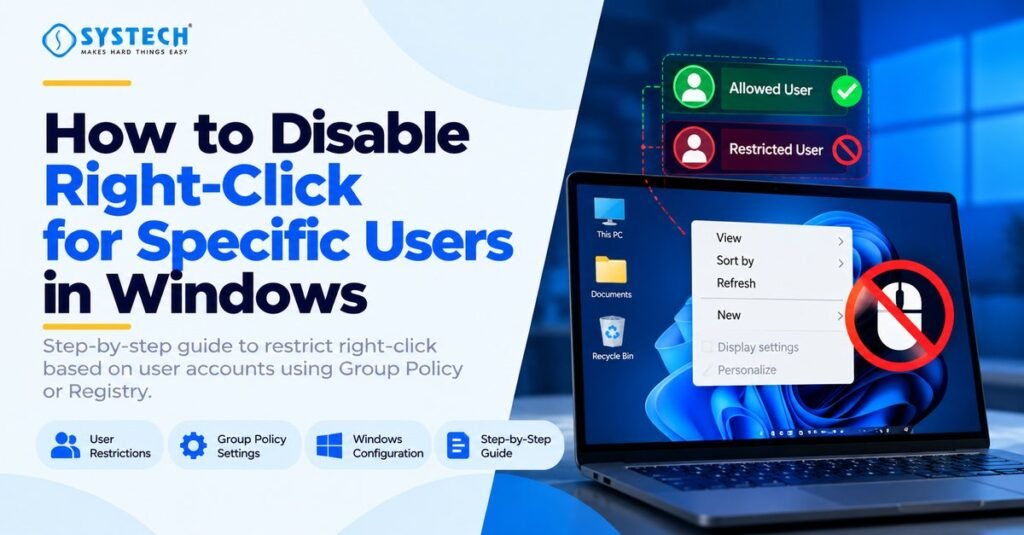
The best way to restrict right-click context menus for 100 selected employees in a company with 500 systems is to use Active Directory security groups and Windows Group Policy. Enable Remove File Explorer’s default context menu to hide context menus on the desktop and in File Explorer for targeted users. This policy does not disable right-click in every application, so test the required restrictions before deployment.
Table of Contents
Introduction
In a company with 500 computer systems, an administrator may need to restrict certain Windows features for a specific department without affecting other employees. For example, if only 100 employees must be restricted from opening right-click context menus, applying the restriction to all 500 systems would create unnecessary problems for the remaining users.
The correct approach is to identify the target users, configure a suitable Windows policy, and apply it only to the required group. This type of user-level administration is an important part of managing enterprise systems. Learning how Windows policies work also helps build the foundation for network administration through a practical CCNA course in Chennai.
In this guide, you will learn how to restrict right-click context menus for selected Windows users, configure Group Policy, target a specific department, test the settings and understand the limitations of this method.
What Does Disabling Right-Click Mean in Windows?
Right-clicking a mouse usually opens a context menu. This menu displays options based on the item or area you select.
For example:
- Right-clicking the desktop may display options to change display settings or personalise the desktop.
- Right-clicking a file may display options to copy, rename, delete or open the file.
- Right-clicking an item in File Explorer may display file management options.
- Right-clicking an application may display application-specific commands.
In an organisation, administrators may want to restrict access to some of these menus to maintain a standard desktop environment or reduce access to particular settings.
However, disabling a context menu is not the same as completely disabling the mouse’s right-click button. Windows provides policies for specific menus, but a standard Group Policy setting does not guarantee that right-click will stop working in every application.
Understanding this difference is essential before applying the restriction to a large number of users.
What Is the Best Solution for Disabling Right-Click for 100 Users?
For the given scenario, the recommended approach is to use Active Directory and Group Policy with targeted user permissions.
The administrator can create a policy for the required department and configure the relevant context-menu restriction. Security filtering can then control which users are allowed to apply that policy. Microsoft’s documentation explains how Group Policy scope and security filtering determine whether a policy applies to a user or computer.
Before implementing the policy, identify the required level of restriction.
The first two options are suitable for the main example in this blog. If the requirement is to block the physical right mouse button in every application, additional controls and testing are necessary.
1. Understand the Role of Group Policy
Group Policy is a Windows administration feature that allows administrators to manage user and computer settings centrally. In a domain environment, administrators can use it to apply approved settings across multiple systems.
Instead of manually configuring 100 computers, an administrator can create a policy and apply it to the appropriate users or computers.
Group Policy can help manage settings such as:
- Desktop and File Explorer behaviour.
- Access to selected Windows features.
- Security and password policies.
- Application configuration.
- User environment restrictions.
- Selected administrative options.
For example, a company may have 500 employees divided into different departments. The finance team may need access to particular desktop options, while a controlled workstation group may need some context menus restricted.
By using separate policy scopes, the administrator can apply the required restrictions without intentionally changing the configuration of every employee.
2. Create a Group for the 100 Target Users
The first step is to identify the employees who need the restriction.
Suppose an organisation has 500 users and wants to apply the policy to 100 employees in its operations department. The administrator should create or use an appropriate Active Directory security group.
Steps to create the target group
- Sign in to a domain controller or an administrative computer with the required Active Directory tools.
- Open Active Directory Users and Computers.
- Navigate to the appropriate organisational unit (OU).
- Create a security group, for example, RightClickRestrictedUsers.
- Add the 100 authorised target user accounts to this group.
- Review the membership to ensure that only the intended employees are included.
The group name is an example and can be changed to match the organisation’s naming standards.
Why use a security group?
A security group makes the policy easier to manage. If an employee moves to another department, the administrator can update the group membership instead of manually changing settings on individual computers.
It also helps reduce accidental policy application to employees who do not require the restriction.
For organisations developing broader IT administration skills, a Cyber Security Course in Chennai can provide a learning path into access control, system security and the management of enterprise environments.
3. Configure the Relevant Group Policy Setting
After identifying the users, the administrator must configure the appropriate policy.
For this example, assume the requirement is to remove the default context menu provided by Windows File Explorer and the applicable desktop shell areas.
Step 1: Open Group Policy Management
On a domain-joined administrative computer with the required tools:
- Press Windows + R.
- Type gpmc.msc.
- Press Enter.
- Locate the domain and the appropriate organisational unit in the Group Policy Management console.
The Group Policy Management Console is used to create, link and manage domain Group Policy Objects (GPOs).
If the command is unavailable, check whether the Group Policy Management tools are installed and whether your account has the required permissions.
Step 2: Create a new Group Policy Object
- Right-click the relevant domain or organisational unit.
- Select the option to create a new GPO.
- Give it a descriptive name, such as Restrict File Explorer Context Menus.
- Edit the newly created policy.
Important: Link the policy to the correct scope. Do not link it broadly across the entire domain unless that is the intended result.
Step 3: Navigate to the policy setting
In the Group Policy Management Editor, navigate to:
User Configuration → Policies → Administrative Templates → Windows Components → File Explorer
Look for the policy named Remove File Explorer’s default context menu.
The corresponding policy is documented in Microsoft’s Windows policy reference. Its purpose is to remove the default context menu provided by File Explorer; it does not guarantee that every application will lose every right-click menu.
Step 4: Enable the policy
- Open the relevant policy setting.
- Select Enabled.
- Click Apply.
- Click OK.
Enabling this policy applies the restriction described by that specific setting. It should not be described as a universal mouse-button lock.
If your requirement is to disable only the Start menu or taskbar context menus, use the corresponding policy for that area instead. Windows has separate settings for different context-menu locations.
4. Apply the Policy Only to the 100 Users
Creating a policy does not automatically guarantee that it will affect only the intended employees. The administrator must configure its scope correctly.
Configure security filtering
In Group Policy Management:
- Select the newly created GPO.
- Locate the Scope tab.
- Review the Security Filtering section.
- Configure the policy permissions so the intended security group can apply the GPO.
- Confirm that the required Read and Apply Group Policy permissions are in place.
- Review other policy links, inherited settings and permissions that may affect the result.
Microsoft explains that Group Policy security filtering depends on the appropriate permissions, including Read and Apply Group Policy.
If the GPO is linked to an OU containing more users, security filtering can limit which user accounts apply the policy, provided the rest of the Group Policy scope and permissions are configured correctly.
Example Restricting 100 users out of 500
The expected result is that the selected context-menu restriction applies to the intended users, while the other 400 users remain unaffected by this GPO, assuming no other policies apply the same restriction.
This distinction matters because an existing domain policy, another GPO or a conflicting configuration may still affect the final result.
5. Update Group Policy and Test the Configuration
Once the policy and its scope are configured, test the result before deploying it across the department.
Step 1: Update the Group Policy
On a target Windows computer, sign in using one of the selected user accounts and open Command Prompt.
Run:
gpupdate /force
This requests an update of the applicable Group Policy settings. Some settings may require the user to sign out and sign back in before their effects are visible.
Step 2: Check which policies apply
Run:
gpresult /r
This command displays a summary of the Resultant Set of Policy, including applicable Group Policy Objects.
For a more detailed report, run:
gpresult /h “%USERPROFILE%\Desktop\gpresult.html”
Open the generated HTML report and review the applied and denied GPOs. Confirm that the intended policy is being applied to the correct user.
Step 3: Test both user groups
Perform the following checks:
- Sign in as a member of RightClickRestrictedUsers.
- Test the relevant File Explorer or desktop context-menu behaviour.
- Sign in as a user outside the group.
- Confirm that the new GPO has not unexpectedly restricted that user.
- Test any important business applications that depend on right-click menus.
If the restriction does not work, check group membership, policy scope, permissions, conflicting GPOs and whether a sign-out or other policy refresh is required.
What If Right-Click Still Works in Other Applications?
This is an important troubleshooting point.
The File Explorer policy does not guarantee that right-click will be disabled in web browsers, office applications, custom software or every other Windows program.
For example, an application may implement its own context menu. A browser-based application may also provide its own right-click behaviour.
If the business requirement is to block right-click in all applications, the administrator should evaluate a supported endpoint management solution or a centrally managed application-level control. Test the solution against all required applications before rolling it out to the 100 users.
For readers interested in understanding how attackers misuse system restrictions and how administrators can strengthen access controls, Systech Group’s Ethical Hacking Course in Chennai offers a related learning path in security testing and defensive practices.
Not sure which route fits you?
Tell us your stream and what you are hoping for, and we will tell you honestly which option suits.
Get course detailsCommon Mistakes to Avoid
Best Practices for Enterprise Windows Administration
For a company with hundreds of systems, the restriction should be implemented through a controlled process.
- Use a dedicated security group: Keep the target user list clear and easy to maintain.
- Use a dedicated GPO: Make the purpose of the policy clear to other administrators.
- Test before deployment: Start with a small pilot group before applying the policy to all 100 users.
- Document the configuration: Record the GPO name, scope, target group and expected behaviour.
- Maintain a rollback plan: Know how to disable or unlink the policy if it affects business operations.
- Review access regularly: Remove employees from the target group when the restriction is no longer required.
- Use least privilege: Restrict only the functionality necessary for the business requirement.
These practices help maintain consistent desktop settings without unnecessarily affecting other users.
Conclusion
To restrict right-click context menus for 100 employees in an organisation with 500 systems, the administrator should identify the target users, configure the appropriate Windows Group Policy, apply the policy using Active Directory security filtering, and verify the result before wider deployment.
The most important point is to choose the policy that matches the actual requirement. Restricting the default File Explorer context menu is different from disabling the mouse’s right-click button in every application. Understanding this difference helps administrators avoid unnecessary restrictions and maintain a reliable Windows environment.
If you want to develop stronger skills in Windows administration, networking and access control, explore the CCNA course in Chennai and related cybersecurity training resources at Systech Group.
Frequently asked questions
Can I disable right-click for only 100 users in a company with 500 systems?
Yes, you can target a policy to a selected group of users using Active Directory and Group Policy security filtering, provided the policy itself supports the intended restriction.
Which Group Policy setting removes the default File Explorer context menu?
The policy is named Remove File Explorer’s default context menu, under User Configuration, Administrative Templates and Windows Components in the File Explorer policy area. It does not guarantee that right-click is disabled across every application.
Will this policy affect all 500 computers?
Not necessarily. Its effect depends on the GPO’s links, security filtering, permissions and whether the selected users sign in to other computers where the policy applies.
Does disabling the context menu improve security?
It can reduce access to selected menu-based actions, but it is not a complete security control. Users may still access similar functions through other methods. Use appropriate permissions, application controls and endpoint security policies for stronger protection.
How can an administrator confirm that the policy is working?
Run gpupdate /force, review the results using gpresult /r or an HTML report, and test the relevant context menus using both a targeted user account and a non-targeted account.